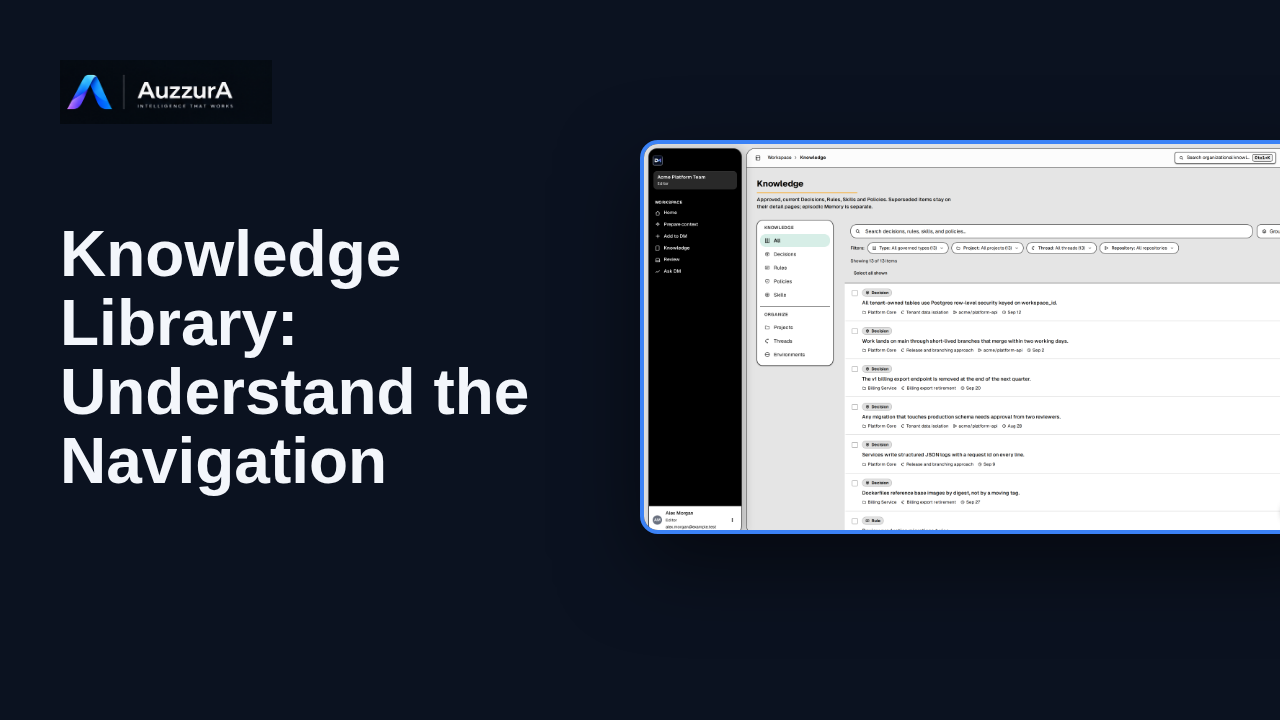
Knowledge library: understand the navigation
Find approved decisions, rules, skills and related team context in DM’s Knowledge library.
For: New workspace member
Product tour
Find a decision’s rationale, owner and source in the Decisions library.
Read the steps OR watch the video. Both teach the same outcome, and neither is needed for the other.Jump to the video
What it means: Start from your DM Home. A decision is more useful when you can see its reason, its owner and its source. Here is how to find them in your team's Decisions library.
What it means: Select Knowledge in the main navigation. It holds everything your team has approved.
What it means: Knowledge groups approved items by type. Choose Decisions to see your team's approved decisions.
What it means: By default the list shows current decisions. The status filter lets you look at other lifecycle states, and the date fields narrow the list by meeting date. Switch to Timeline to see decisions in the order they were made.
What it means: Select Timeline. Each entry shows the decision, its date and its owner, oldest first, so you can follow how your team's thinking developed.
What it means: Switch back to List when you want to open one.
What it means: Select a decision to preview it. The preview leads with what was decided, then the reason why. Below, you see its project, thread and repository, and when it was last updated.
What it means: To go deeper, open the decision. Its own page keeps the full record in one place.
What it means: The page leads with the decision statement and the reason behind it. Its lifecycle status is shown next to the title.
What it means: To see where it came from, open the Evidence and Lineage tab.
What it means: Linked evidence shows the source the decision rests on. Here, it is an excerpt from the meeting where the decision was made. A decision shows evidence only where it has been linked.
What it means: Then put what you find to work. Ask DM and Prepare context, both in the sidebar, can bring approved decisions into your next task. Next, learn how to use Search and Ask DM.
The decisions, rationale, owners and the meeting excerpt shown are invented for this tour. DM Decision Health describes how complete and traceable a record is, not whether the decision was right.
Searching for a decision is the subject of a separate episode and is not repeated here.
Demo environment · synthetic workspace and data · backend responses are simulated. See the reason, owner and source behind a decision
This guide tours the real DM Decisions library and a decision's detail page with a synthetic workspace and simulated backend responses. Which decisions, filters and views you see in your own workspace depend on your data and role.
Disclosure (kept in this transcript and the video description, not drawn on the frames): Demo environment · synthetic workspace and data · backend responses are simulated.
On screen: Start on DM Home (/). A highlight marks "Knowledge".
Narrator: Start from your DM Home.
Narrator: A decision is more useful when you can see its reason, its owner and its source.
Narrator: Here is how to find them in your team's Decisions library.
On screen: Click "Knowledge". The next view is "Knowledge" (/knowledge). A highlight marks "Knowledge".
Narrator: Select Knowledge in the main navigation.
Narrator: It holds everything your team has approved.
On screen: Click "Decisions". The next view is "Decisions" (/knowledge/decisions). A highlight marks "Decisions".
Narrator: Knowledge groups approved items by type.
Narrator: Choose Decisions to see your team's approved decisions.
On screen: A highlight labelled "Lifecycle status" marks "Current Active In progress Blocked Completed Superseded Cancelled Arc…". A highlight labelled "Timeline view" marks "Timeline".
Narrator: By default the list shows current decisions.
Narrator: The status filter lets you look at other lifecycle states, and the date fields narrow the list by meeting date.
Narrator: Switch to Timeline to see decisions in the order they were made.
On screen: Click "Timeline". The next view is "Decisions" (/knowledge/decisions). A highlight labelled "Timeline view" marks "Timeline".
Narrator: Select Timeline.
Narrator: Each entry shows the decision, its date and its owner, oldest first, so you can follow how your team's thinking developed.
On screen: Click "List". The next view is "Decisions" (/knowledge/decisions). A highlight labelled "List view" marks "List".
Narrator: Switch back to List when you want to open one.
On screen: Click "Decision All tenant-owned tables use Postgres row-level security keyed on worksp". The next view is "Decisions" (/knowledge/decisions). A highlight labelled "Select a decision" marks "Decision All tenant-owned tables use Postgres row-level security keye…". Afterwards: A highlight labelled "What was decided" marks "Isolate tenant data with row-level security".
Narrator: Select a decision to preview it.
Narrator: The preview leads with what was decided, then the reason why.
Narrator: Below, you see its project, thread and repository, and when it was last updated.
On screen: Click "Open decision". The next view is "Isolate tenant data with row-level security" (/decisions/dec-rls). A highlight labelled "Open the decision" marks "Open decision".
Narrator: To go deeper, open the decision.
Narrator: Its own page keeps the full record in one place.
On screen: A highlight labelled "The decision" marks "All tenant-owned tables use Postgres row-level security keyed on work…". A highlight labelled "Why" marks "Why Application-level filters have missed a query before. Row-level s…".
Narrator: The page leads with the decision statement and the reason behind it.
Narrator: Its lifecycle status is shown next to the title.
On screen: Click "Evidence & Lineage". The next view is "Isolate tenant data with row-level security" (/decisions/dec-rls). A highlight labelled "Evidence and lineage" marks "Evidence & Lineage".
Narrator: To see where it came from, open the Evidence and Lineage tab.
On screen: A highlight labelled "Linked evidence" marks "1 linked item".
Narrator: Linked evidence shows the source the decision rests on. Here, it is an excerpt from the meeting where the decision was made.
Narrator: A decision shows evidence only where it has been linked.
On screen: A highlight marks "Ask DM". A highlight marks "Prepare context".
Narrator: Then put what you find to work.
Narrator: Ask DM and Prepare context, both in the sidebar, can bring approved decisions into your next task.
Narrator: Next, learn how to use Search and Ask DM.
Last verified against the product on .
Find approved decisions, rules, skills and related team context in DM’s Knowledge library.
For: New workspace member
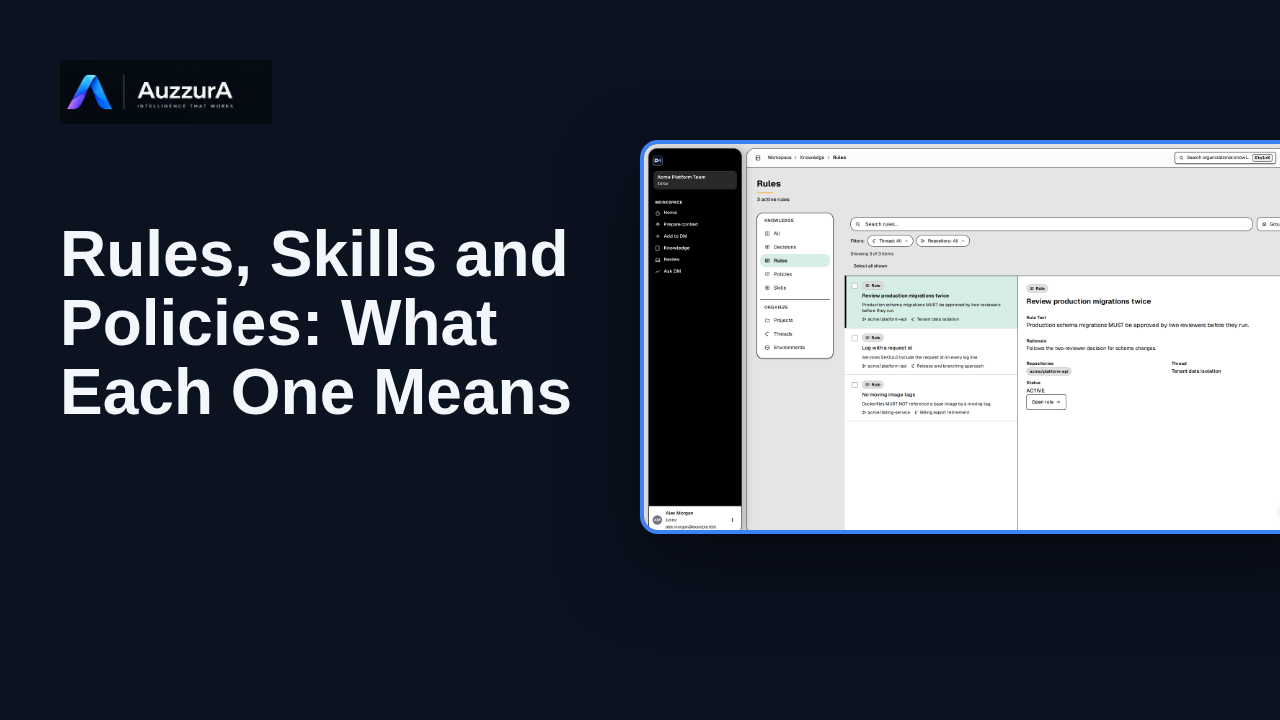
Explain the differences between the main Knowledge types and where to inspect them. Not everything your team remembers is the same kind of knowledge.
For: Member and admin
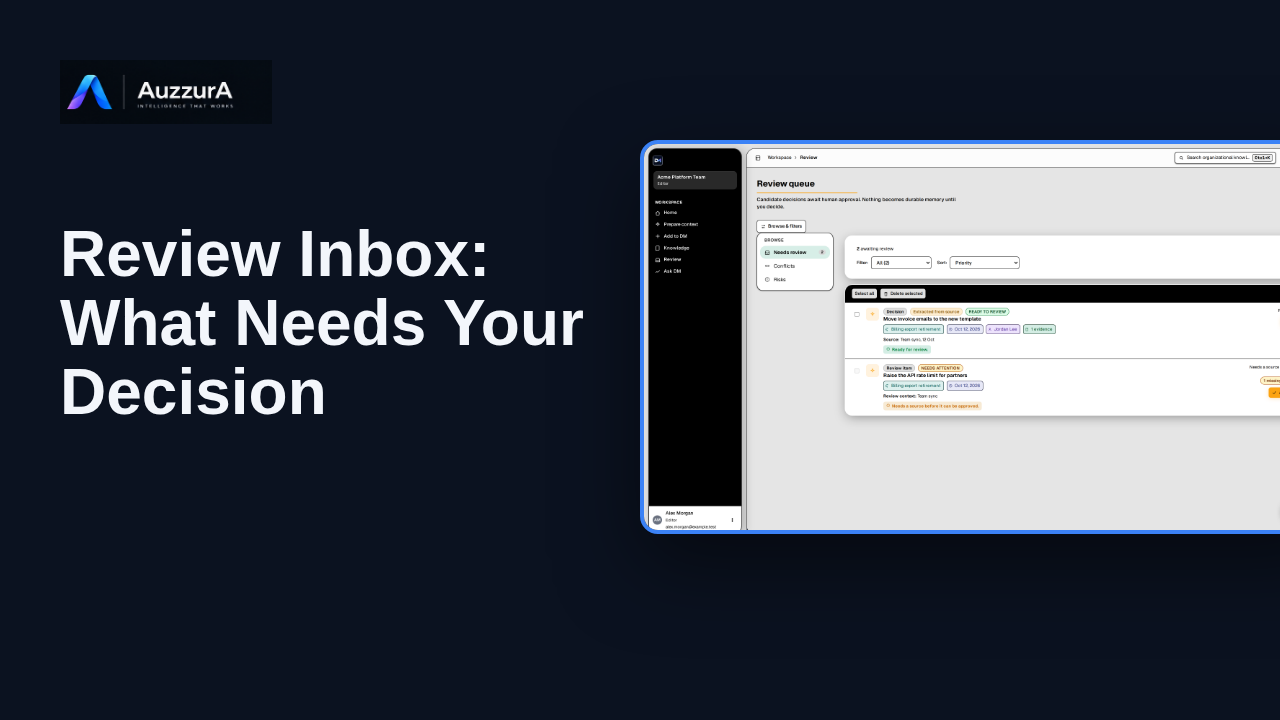
Show how to interpret the review queue before diving into detailed approval. The Review Inbox is where proposed knowledge waits for someone to judge it.
For: Reviewer or workspace decision owner
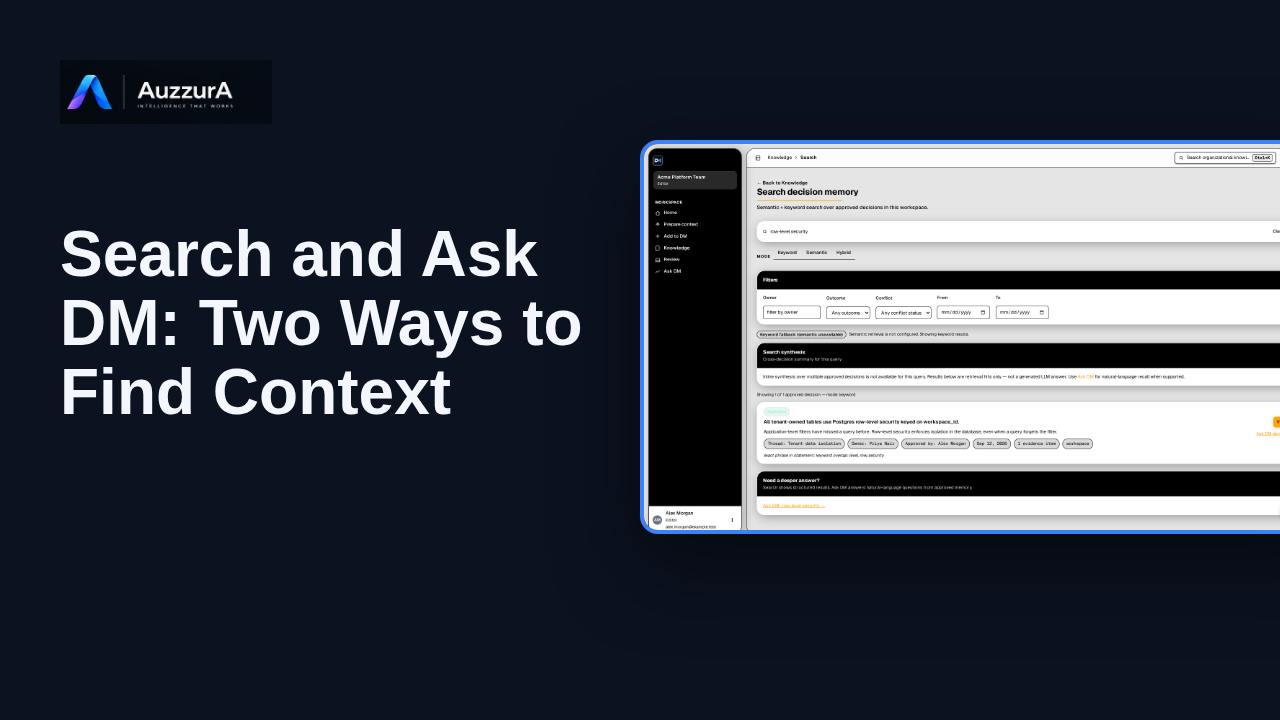
Orient users to search/navigation versus natural-language answer with citations. You do not need to remember a document title to find the decision behind it.
For: Any authorized workspace user