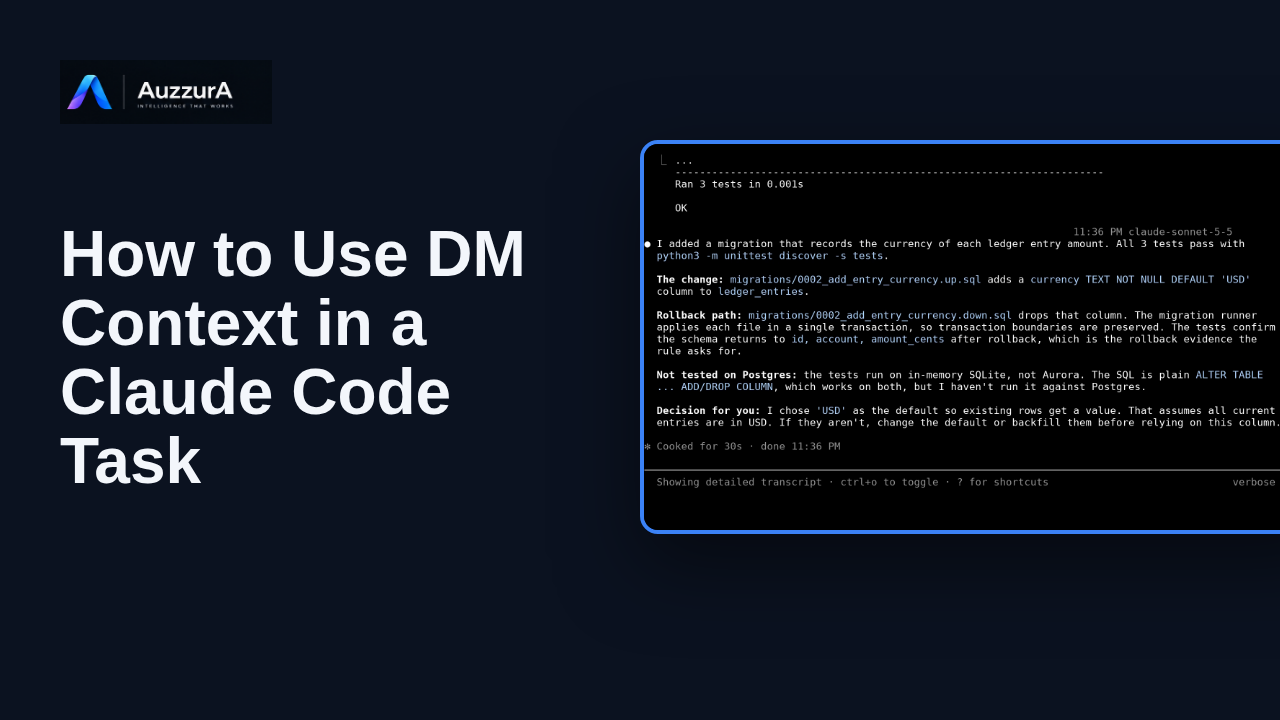
Use DM context in a Claude Code task
See Claude Code call dm.prepare_task_memory, apply approved context to a coding task, and report the tested result.
For: Developer using Claude Code
How-to
Connect DM to Claude with OAuth and verify access to DM tools in Claude.ai and Claude Code for approved team context.
Read the steps OR watch the video. Both teach the same outcome, and neither is needed for the other.Jump to the video
What it means: In Claude dot A I, open Customize, then Connectors. Select Add, then Add custom connector.
What it means: Give the connector a name. Paste the DM MCP address, the production endpoint from the card. Then select Continue, and Claude checks how the server signs in.
What it means: Claude detects that the server uses OAuth. Sign in now is selected, and Claude registers its own client automatically. There is no client ID or secret to paste.
What it means: Select Add. The connector page opens. Because this demo connector was previously authorized, Claude shows Reconnect.
What it means: DM opens its own sign-in page. You sign in with your own DM account. Credentials are entered in DM only, and this recording masks the fields.
What it means: DM now asks you to approve the connection. It says Claude wants to connect to DM. Choose the workspace, then the agent. Here a demo workspace and its agent are selected. Standard access lets the agent search approved knowledge, prepare task context, and propose updates. It cannot approve knowledge or change administrative settings.
What it means: Review the list, then select Connect Agent. DM then returns you to Claude.
What it means: Back in Claude, the connector page shows the connector you added. A Disconnect button is offered, and fifteen DM tools are listed under Other tools.
What it means: The same connector is available in Claude Code, under the same account. Run claude mcp get with the connector name. The status reads Connected.
What it means: Start Claude Code and type slash mcp. Your Claude dot A I connectors are listed here, and DM is one of them.
What it means: Select it to see the status, the endpoint and fifteen tools. View tools lists the DM tools, including prepare task memory.
What it means: Alternatively, add the server from a terminal with claude mcp add. Use one route or the other: the same address added both ways shows only the command's entry.
A supervised recording of Claude.ai (clip approved for editing by a named human reviewer). The footage shows only what the operator did in a demo account; it is not a DM step and does not show a native DM integration.
What it means: Click it to open DM's secure sign-in page.
Next, we will use that governed context in a real Claude Code task.
Demo environment · recorded Claude.ai and Claude Code sessions · synthetic data. Claude.ai Connector Setup | AuzzurA DM
Contains recorded Claude.ai and Claude Code sessions made in a demo environment (synthetic data, identity masked). The recorded connection was not made against production. It is not a published or approved video.
A small, muted indicator reading "Demo environment · recorded Claude.ai and Claude Code sessions · synthetic data" stays at the top of the frame for the whole video.
On screen: The AuzzurA DM logo, the title "Connect DM to Claude Code with OAuth" and the subtitle "Claude.ai Connector Setup | AuzzurA DM".
Narrator: Connect DM to Claude Code with OAuth.
On screen: An illustrative motion graphic (not product UI), layout stats, labelled “Illustrative graphic · not product UI”. Kicker “Connect DM to Claude”. Heading “What you get”. Items: “Governed context” with the detail “Approved Decisions, Rules and Skills”; “Agent identity” with the detail “Claude appears as its own agent”; “Scoped access” with the detail “Only what you approve”; “OAuth 2.0 with PKCE” with the detail “No token copying”.
Narrator: Connect DM to Claude, and Claude can read the governed context in your DM workspace.
Narrator: The agent has its own identity, its access is scoped, and no token is copied by hand.
On screen: An illustrative motion graphic (not product UI), layout endpoint, labelled “Illustrative graphic · not product UI”. Kicker “Which address to use”. Heading “Production MCP endpoint”. Items: “https://api.dm.auzzura.com/mcp” with the detail “The address you paste into Claude”; “This recording: a demo environment” with the detail “The recorded connection was not made against production”. Footnote: “Production address from the deployed DM configuration. In the recording, the demo endpoint is replaced on screen by the production address: an annotation, not a production connection.”.
Narrator: This walkthrough uses a demo environment.
Narrator: When connecting your own Claude account to DM, use the production MCP endpoint shown here.
On screen: A recording of a real Claude.ai session (demo environment) (approved for editing by a named human reviewer) plays for 7.0 s. A banner reads "Recorded Claude.ai session · demo environment · synthetic data · private review build". Account details and OAuth URLs are masked at capture time. Callouts are drawn over it: "Connectors" (Under Customize); "Add" (Then Add custom connector).
Narrator: In Claude dot A I, open Customize, then Connectors.
Narrator: Select Add, then Add custom connector.
On screen: A recording of a real Claude.ai session (demo environment) (approved for editing by a named human reviewer) plays for 11.4 s. A banner reads "Recorded Claude.ai session · demo environment · synthetic data · private review build". Account details and OAuth URLs are masked at capture time. Callouts are drawn over it: "Connector name"; "Production MCP endpoint" (enter only the URL); "Continue".
Narrator: Give the connector a name.
Narrator: Paste the DM MCP address, the production endpoint from the card.
Narrator: Then select Continue, and Claude checks how the server signs in.
On screen: A recording of a real Claude.ai session (demo environment) (approved for editing by a named human reviewer) plays for 11.5 s. A banner reads "Recorded Claude.ai session · demo environment · synthetic data · private review build". Account details and OAuth URLs are masked at capture time. Callouts are drawn over it: "Production MCP endpoint"; "Sign in now (Detected)" (Each user signs in through DM); "Register automatically (Detected)" (Claude registers its own client).
Narrator: Claude detects that the server uses OAuth.
Narrator: Sign in now is selected, and Claude registers its own client automatically. There is no client ID or secret to paste.
On screen: A recording of a real Claude.ai session (demo environment) (approved for editing by a named human reviewer) plays for 14.0 s. A banner reads "Recorded Claude.ai session · demo environment · synthetic data · private review build". Account details and OAuth URLs are masked at capture time. Callouts are drawn over it: "Reconnect" (Demo connector authorized before); "Production MCP endpoint".
Narrator: Select Add.
Narrator: The connector page opens.
Narrator: Because this demo connector was previously authorized, Claude shows Reconnect.
On screen: A recording of a real Claude.ai session (demo environment) (approved for editing by a named human reviewer) plays for 5.0 s. A banner reads "Recorded Claude.ai session · demo environment · synthetic data · private review build". Account details and OAuth URLs are masked at capture time.
Narrator: Click it to open DM's secure sign-in page.
On screen: A recording of a real Claude.ai session (demo environment) (approved for editing by a named human reviewer) plays for 9.0 s. A banner reads "Recorded Claude.ai session · demo environment · synthetic data · private review build". Account details and OAuth URLs are masked at capture time. Callouts are drawn over it: "Sign in on DM" (Your own DM account).
Narrator: DM opens its own sign-in page.
Narrator: You sign in with your own DM account. Credentials are entered in DM only, and this recording masks the fields.
On screen: A recording of a real Claude.ai session (demo environment) (approved for editing by a named human reviewer) plays for 25.3 s. A banner reads "Recorded Claude.ai session · demo environment · synthetic data · private review build". Account details and OAuth URLs are masked at capture time. Callouts are drawn over it: "Claude wants to connect to DM" (You approve it here, in DM); "Choose the workspace"; "Workspace chosen" (A demo workspace); "Choose the agent" (Claude gets its own agent identity); "Review the access profile".
Narrator: DM now asks you to approve the connection. It says Claude wants to connect to DM.
Narrator: Choose the workspace, then the agent.
Narrator: Here a demo workspace and its agent are selected.
Narrator: Standard access lets the agent search approved knowledge, prepare task context, and propose updates.
Narrator: It cannot approve knowledge or change administrative settings.
On screen: A recording of a real Claude.ai session (demo environment) (approved for editing by a named human reviewer) plays for 11.5 s. A banner reads "Recorded Claude.ai session · demo environment · synthetic data · private review build". Account details and OAuth URLs are masked at capture time.
Narrator: Review the list, then select Connect Agent.
Narrator: DM then returns you to Claude.
On screen: A recording of a real Claude.ai session (demo environment) (approved for editing by a named human reviewer) plays for 9.2 s. A banner reads "Recorded Claude.ai session · demo environment · synthetic data · private review build". Account details and OAuth URLs are masked at capture time. Callouts are drawn over it: "Your connector" (The one you added); "Production MCP endpoint"; "Connected: Disconnect is offered"; "15 DM tools" (Listed under Other tools).
Narrator: Back in Claude, the connector page shows the connector you added.
Narrator: A Disconnect button is offered, and fifteen DM tools are listed under Other tools.
On screen: A recording of a real Claude Code session (demo environment) (approved for editing by a named human reviewer) plays for 8.5 s. A banner reads "Recorded Claude Code session · demo environment · synthetic data · private review build". Account details and OAuth URLs are masked at capture time. Callouts are drawn over it: "Connector name" (Prefixed with claude.ai); "Status: Connected". The view zooms in on part of the recording to make it readable.
Narrator: The same connector is available in Claude Code, under the same account.
Narrator: Run claude mcp get with the connector name. The status reads Connected.
On screen: A recording of a real Claude Code session (demo environment) (approved for editing by a named human reviewer) plays for 5.7 s. A banner reads "Recorded Claude Code session · demo environment · synthetic data · private review build". Account details and OAuth URLs are masked at capture time. Callouts are drawn over it: "Your DM connector" (15 tools). The view zooms in on part of the recording to make it readable.
Narrator: Start Claude Code and type slash mcp.
Narrator: Your Claude dot A I connectors are listed here, and DM is one of them.
On screen: A recording of a real Claude Code session (demo environment) (approved for editing by a named human reviewer) plays for 10.2 s. A banner reads "Recorded Claude Code session · demo environment · synthetic data · private review build". Account details and OAuth URLs are masked at capture time. Callouts are drawn over it: "Status: connected"; "Production endpoint"; "15 DM tools" (including dm.prepare_task_memory). The view zooms in on part of the recording to make it readable.
Narrator: Select it to see the status, the endpoint and fifteen tools.
Narrator: View tools lists the DM tools, including prepare task memory.
On screen: A recording of a real Claude Code terminal session (approved for editing by a named human reviewer) plays for 10.4 s. A banner reads "Recorded Claude Code session · local demo DM with synthetic data · private review build". Account details and OAuth URLs are masked at capture time. Callouts are drawn over it: "Production".
Narrator: Alternatively, add the server from a terminal with claude mcp add.
Narrator: Use one route or the other: the same address added both ways shows only the command's entry.
On screen: The AuzzurA DM logo, the heading "Next: Use DM context in a real Claude Code task" and the line "Up next in the series: HT-26 (in production, not yet published)".
Narrator: Next, we will use that governed context in a real Claude Code task.
Last verified against the product on .
See Claude Code call dm.prepare_task_memory, apply approved context to a coding task, and report the tested result.
For: Developer using Claude Code