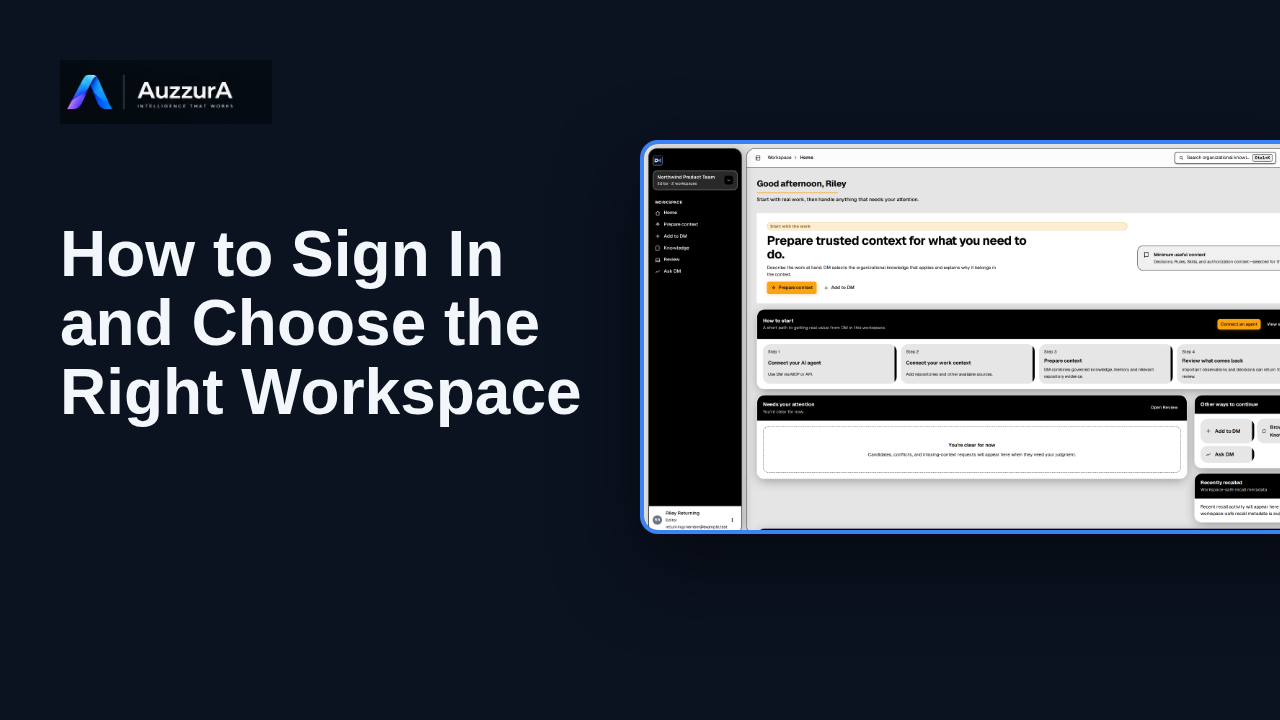
Sign in and choose the right workspace
Confirm correct workspace and permissions before working. Already signed in? Before working, check which team workspace is active.
For: Invited pilot user
How-to
Complete the invitation acceptance path and arrive in the invited workspace. Your invitation is the doorway to your team’s workspace in DM.
Read the steps OR watch the video. Both teach the same outcome, and neither is needed for the other.Jump to the video
What it means: You've been invited to join your team's workspace on DM. Let's get you started. Your invitation email is addressed to you, and its link is meant only for you, so please don't forward it. If you can't find it, check your spam folder, or ask the person who invited you to send it again. When you're ready, select Accept invitation.
What it means: Your invitation opens in DM. It is tied to the email address it was sent to, which you can see here. Check that this is the address you expect to use.
What it means: Next, choose how you'd like to continue. Depending on how your team has set things up, you can continue with Google, Microsoft or GitHub. You will only see the options your team has turned on. If you are new to DM, you can create a password instead. If you already have an account, sign in the way you usually do. Whichever you choose, use the email address your invitation was sent to.
What it means: This example creates a new password. Select Create a password.
What it means: Enter a password of at least eight characters, then enter it again to confirm. Choose one that is easy for you to remember and hard for others to guess.
What it means: Then select Create password and join. That's it. Your invitation is accepted, and you have joined your team. DM now takes you to your team's workspace.
What it means: You're all set. Welcome to your workspace. The workspace name here confirms you are in your team's space. From here, you can start using DM with your team. Next, let's explore your DM Home.
Real email delivery, a real invitation token and acceptance against a deployed backend were not shown or verified. The confirmation and the workspace activation come from simulated responses.
Google, Microsoft and GitHub are shown as available sign-in options only. None of them was started, and no sign-in with a real identity provider was performed or verified. Signing in with an existing account is described but not demonstrated.
Demo environment · sample email · synthetic accounts · backend responses are simulated. Your invitation is the doorway to your team's workspace
This guide follows a sample invitation email, the real DM invitation screens and workspace Home, with simulated backend responses. It does not prove that invitation acceptance works in staging or production.
Disclosure (kept in this transcript and the video description, not drawn on the frames): Demo environment · sample email · synthetic accounts · backend responses are simulated.
On screen: Open the sample invitation email. Click "Accept invitation". The next view is "You're invited to AuzzurA" (/accept-invite). A highlight marks "Accept invitation".
Narrator: You've been invited to join your team's workspace on DM. Let's get you started.
Narrator: Your invitation email is addressed to you, and its link is meant only for you, so please don't forward it.
Narrator: If you can't find it, check your spam folder, or ask the person who invited you to send it again.
Narrator: When you're ready, select Accept invitation.
On screen: A highlight labelled "Your invited email" marks "INVITATION FOR new.member@example.test".
Narrator: Your invitation opens in DM.
Narrator: It is tied to the email address it was sent to, which you can see here.
Narrator: Check that this is the address you expect to use.
On screen: A highlight labelled "Your sign-in options" marks "Choose how you'd like to continue Continue with Google Continue with…".
Narrator: Next, choose how you'd like to continue.
Narrator: Depending on how your team has set things up, you can continue with Google, Microsoft or GitHub. You will only see the options your team has turned on.
Narrator: If you are new to DM, you can create a password instead. If you already have an account, sign in the way you usually do.
Narrator: Whichever you choose, use the email address your invitation was sent to.
On screen: Click "Create a password". The next view is "You're invited to AuzzurA" (/accept-invite). A highlight marks "Create a password".
Narrator: This example creates a new password. Select Create a password.
On screen: Enter a password (at least 8 characters) in the "PasswordAt least 8 characters." field. The value is not shown or recorded. Enter a password (at least 8 characters) in the "Confirm password" field. The value is not shown or recorded. A highlight marks "Your password". A highlight marks "Confirm it". Afterwards: A highlight marks "Create password & join".
Narrator: Enter a password of at least eight characters, then enter it again to confirm. Choose one that is easy for you to remember and hard for others to guess.
On screen: Click "Create password & join". The next view is "You're in" (/accept-invite). A highlight marks "Create password & join". Afterwards: A highlight labelled "Invitation accepted" marks "You joined the workspace.".
Narrator: Then select Create password and join.
Narrator: That's it. Your invitation is accepted, and you have joined your team. DM now takes you to your team's workspace.
On screen: A highlight labelled "Your team's workspace" marks "Acme Platform Team".
Narrator: You're all set. Welcome to your workspace.
Narrator: The workspace name here confirms you are in your team's space.
Narrator: From here, you can start using DM with your team.
Narrator: Next, let's explore your DM Home.
Last verified against the product on .
Confirm correct workspace and permissions before working. Already signed in? Before working, check which team workspace is active.
For: Invited pilot user
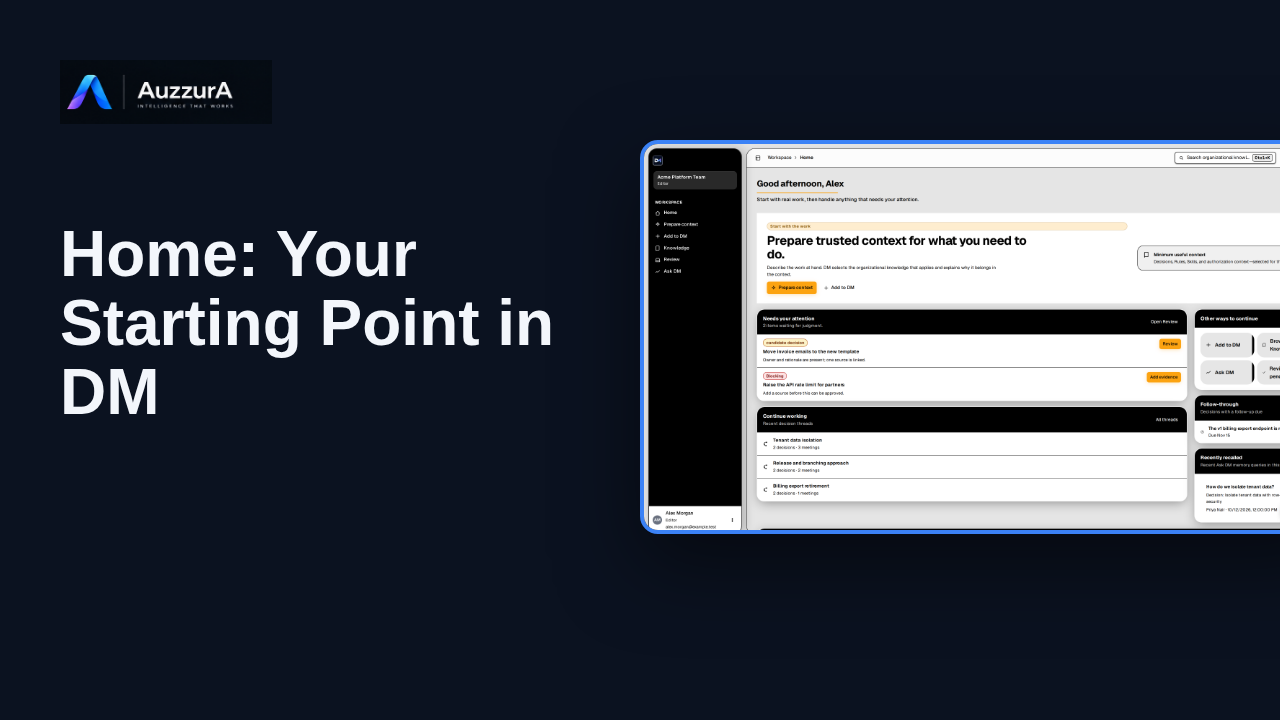
Orient new users to DM Home and the main areas that need attention.
For: Any signed-in workspace member
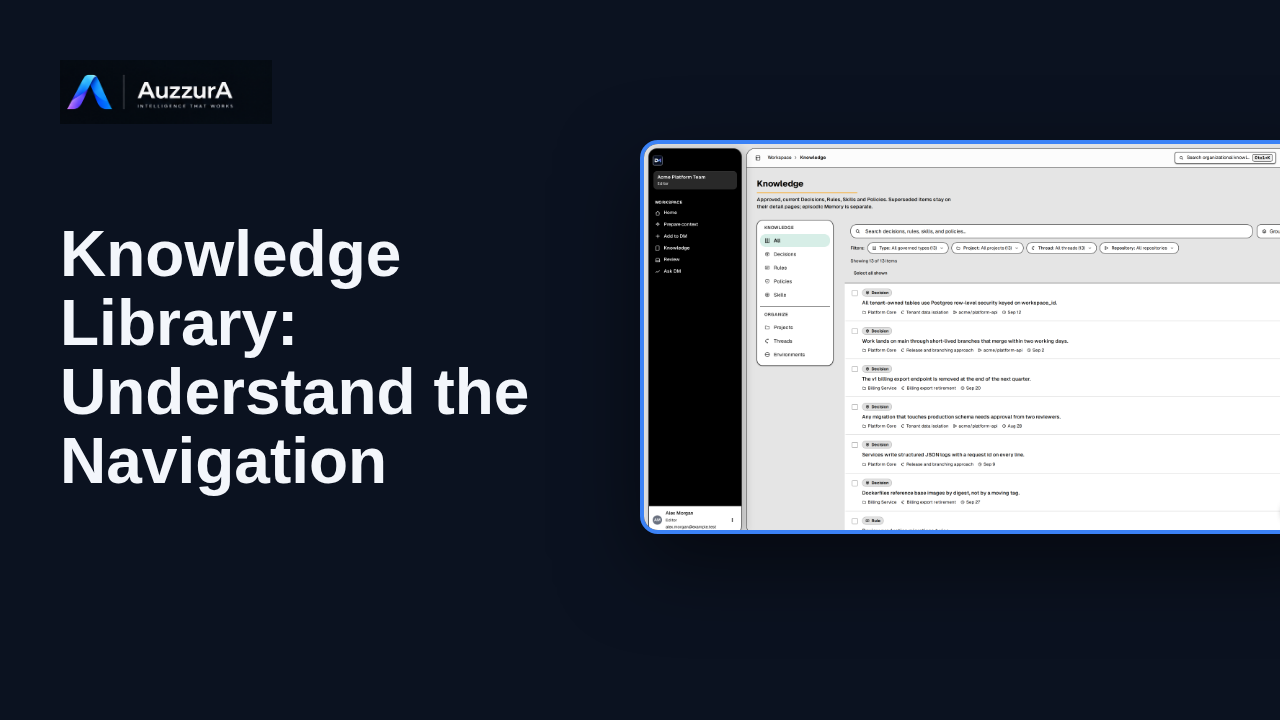
Find approved decisions, rules, skills and related team context in DM’s Knowledge library.
For: New workspace member
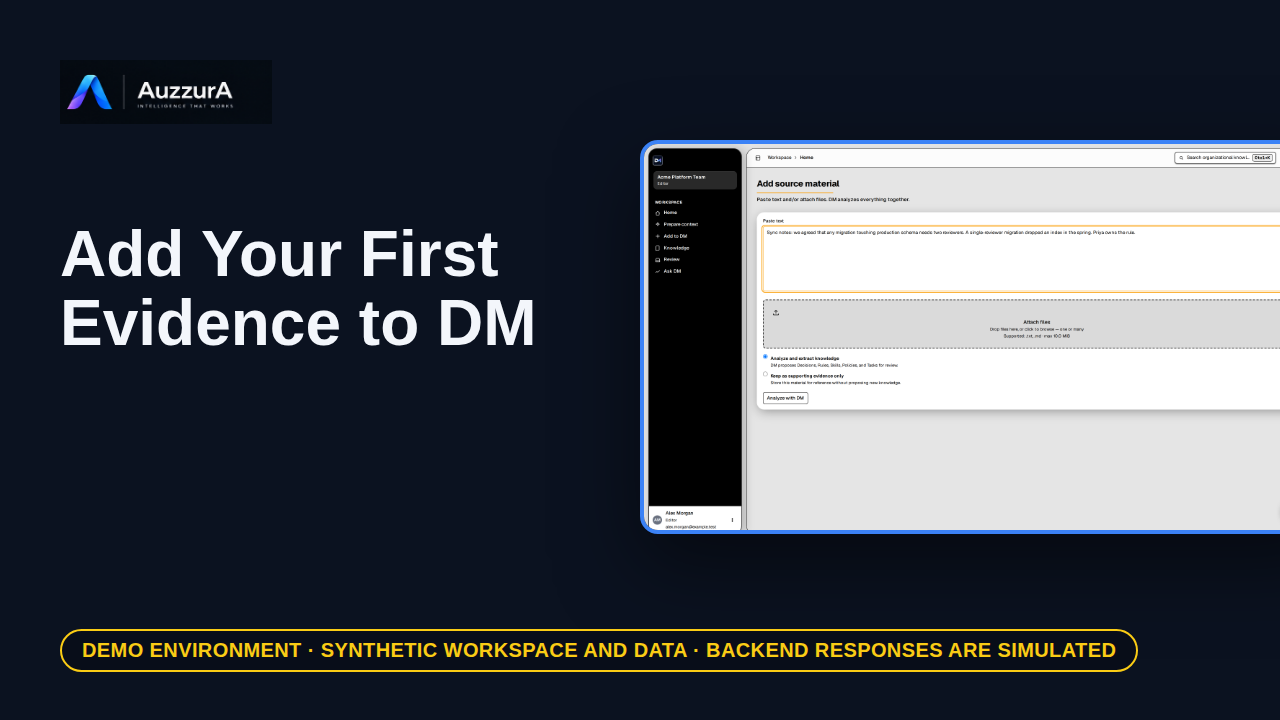
Start from one relevant source rather than recording everything. A team decision often starts in a document, a ticket, or a meeting note.
For: Workspace member