Sign in and choose the right workspace
Confirm correct workspace and permissions before working. Already signed in? Before working, check which team workspace is active.
For: Invited pilot user
Product tour
Orient new users to DM Home and the main areas that need attention.
Read the steps OR watch the video. Both teach the same outcome, and neither is needed for the other.Jump to the video
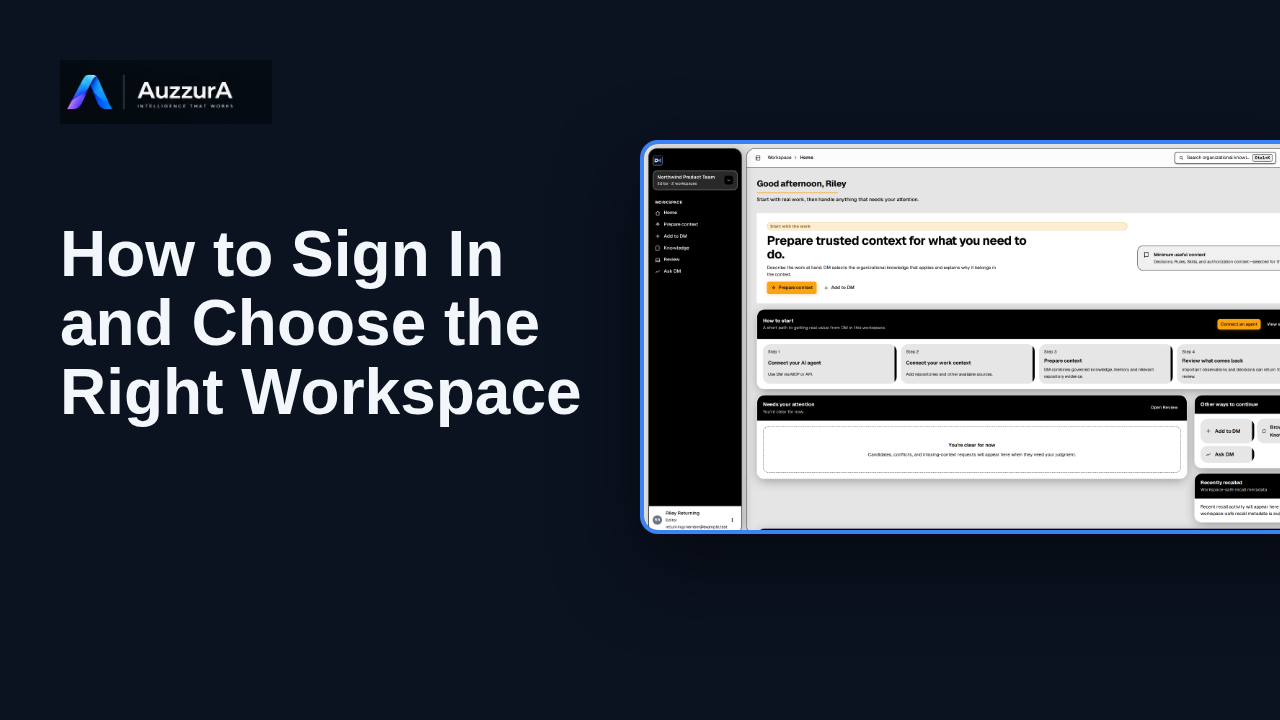
What it means: This is your DM Home inside the app. It shows what needs attention and where to work next. First, check where you are. The sidebar shows your active workspace and your role in it. Home reflects that workspace and what you are allowed to see.
What it means: The large card at the top is your direct path into work. Prepare context selects the organizational knowledge that applies to a task and explains why it belongs. Start here when you have something to do. Add to DM, beside it, is for contributing new material. This tour does not open either.
What it means: Below it, Needs your attention lists items waiting for judgment, such as a candidate decision to review or evidence that is missing. You only see items you have permission to see, and a clear list means nothing is waiting for you. Each item says why it needs you, and its button takes you straight to the work. Open Review to work through them all.
What it means: Workspace overview links to your decisions, rules, skills and review work. Each number describes what you can see in this workspace. If a count cannot be loaded, DM leaves it out instead of showing a zero.
What it means: To pick up where you left off, use Continue working for recent decision threads. Follow-through shows decisions with a follow-up due, and Other ways to continue offers shortcuts. They help you resume work instead of starting again.
What it means: A brand-new workspace looks different. Until there is something to show, Home displays a How to start path instead. It walks through connecting an agent, connecting your work context, preparing context and reviewing what comes back. As your team adds knowledge, the cards you just saw take its place. Next, tour the Knowledge library.
The content, counts and review items shown are invented for this tour. A real workspace shows its own data, and some cards are absent when there is nothing to show or when you lack access.
Only the DM application Home is shown, not the auzzura.com website home page. Task preparation, review and Ask DM are mentioned but not demonstrated.
Demo environment · synthetic workspace and data · backend responses are simulated. See what needs attention and where to work next
This guide tours the real DM Home screen with a synthetic workspace and simulated backend responses. Which cards appear in your own workspace depends on your role, your data and what is available.
Disclosure (kept in this transcript and the video description, not drawn on the frames): Demo environment · synthetic workspace and data · backend responses are simulated.
On screen: Start on DM Home (/). A highlight labelled "Your workspace and role" marks "Acme Platform Team Editor".
Narrator: This is your DM Home inside the app. It shows what needs attention and where to work next.
Narrator: First, check where you are. The sidebar shows your active workspace and your role in it.
Narrator: Home reflects that workspace and what you are allowed to see.
On screen: A highlight labelled "Start a task here" marks "Prepare context".
Narrator: The large card at the top is your direct path into work.
Narrator: Prepare context selects the organizational knowledge that applies to a task and explains why it belongs.
Narrator: Start here when you have something to do. Add to DM, beside it, is for contributing new material. This tour does not open either.
On screen: A highlight labelled "Waiting for your judgment" marks "Needs your attention 2 items waiting for judgment. Open Review candid…".
Narrator: Below it, Needs your attention lists items waiting for judgment, such as a candidate decision to review or evidence that is missing.
Narrator: You only see items you have permission to see, and a clear list means nothing is waiting for you.
Narrator: Each item says why it needs you, and its button takes you straight to the work. Open Review to work through them all.
On screen: A highlight labelled "Open your decisions" marks "Active Decisions 6 Open →". A highlight labelled "Rules" marks "Rules 3 Open →". A highlight labelled "Skills" marks "Skills 2 Open →".
Narrator: Workspace overview links to your decisions, rules, skills and review work.
Narrator: Each number describes what you can see in this workspace.
Narrator: If a count cannot be loaded, DM leaves it out instead of showing a zero.
On screen: A highlight labelled "Recent threads" marks "Continue working Recent decision threads All threads Tenant data isol…". A highlight labelled "Follow-ups due" marks "Follow-through Decisions with a follow-up due Open queue The v1 billi…".
Narrator: To pick up where you left off, use Continue working for recent decision threads.
Narrator: Follow-through shows decisions with a follow-up due, and Other ways to continue offers shortcuts.
Narrator: They help you resume work instead of starting again.
On screen: Open an empty workspace's Home. A highlight labelled "How to start" marks "How to start A short path to getting real value from DM in this works…".
Narrator: A brand-new workspace looks different. Until there is something to show, Home displays a How to start path instead.
Narrator: It walks through connecting an agent, connecting your work context, preparing context and reviewing what comes back.
Narrator: As your team adds knowledge, the cards you just saw take its place.
Narrator: Next, tour the Knowledge library.
Last verified against the product on .
Confirm correct workspace and permissions before working. Already signed in? Before working, check which team workspace is active.
For: Invited pilot user
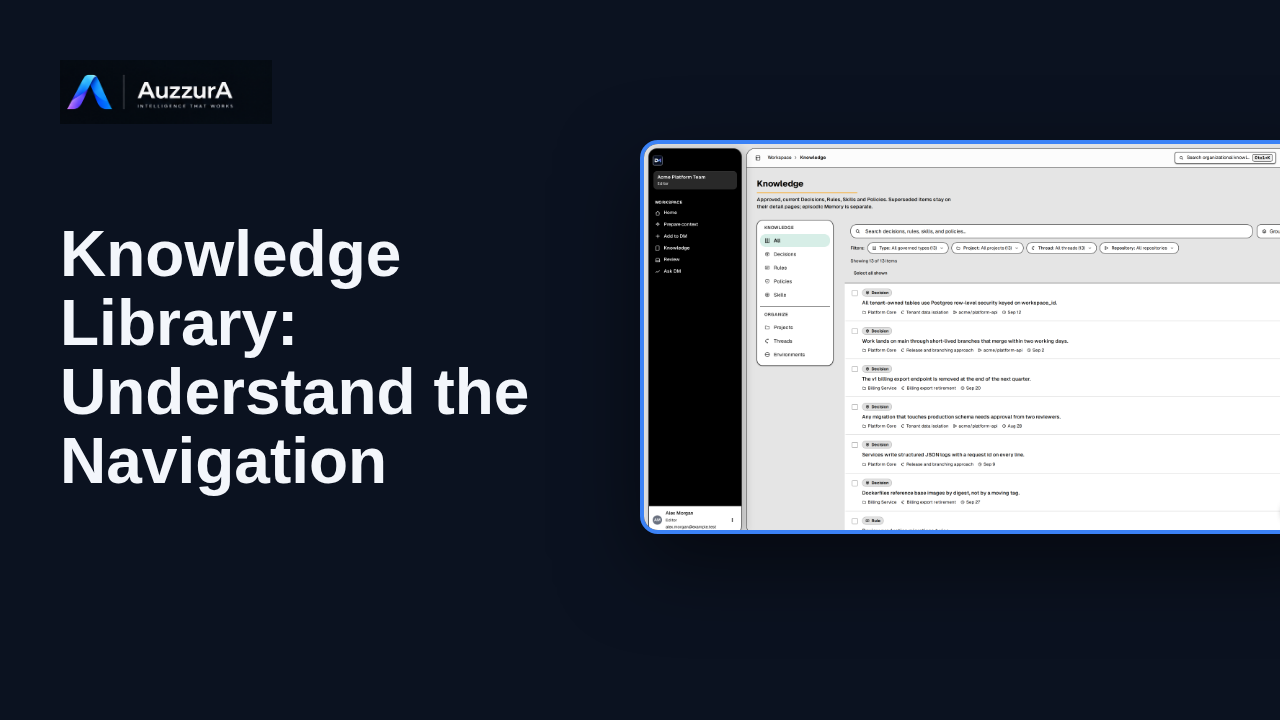
Find approved decisions, rules, skills and related team context in DM’s Knowledge library.
For: New workspace member
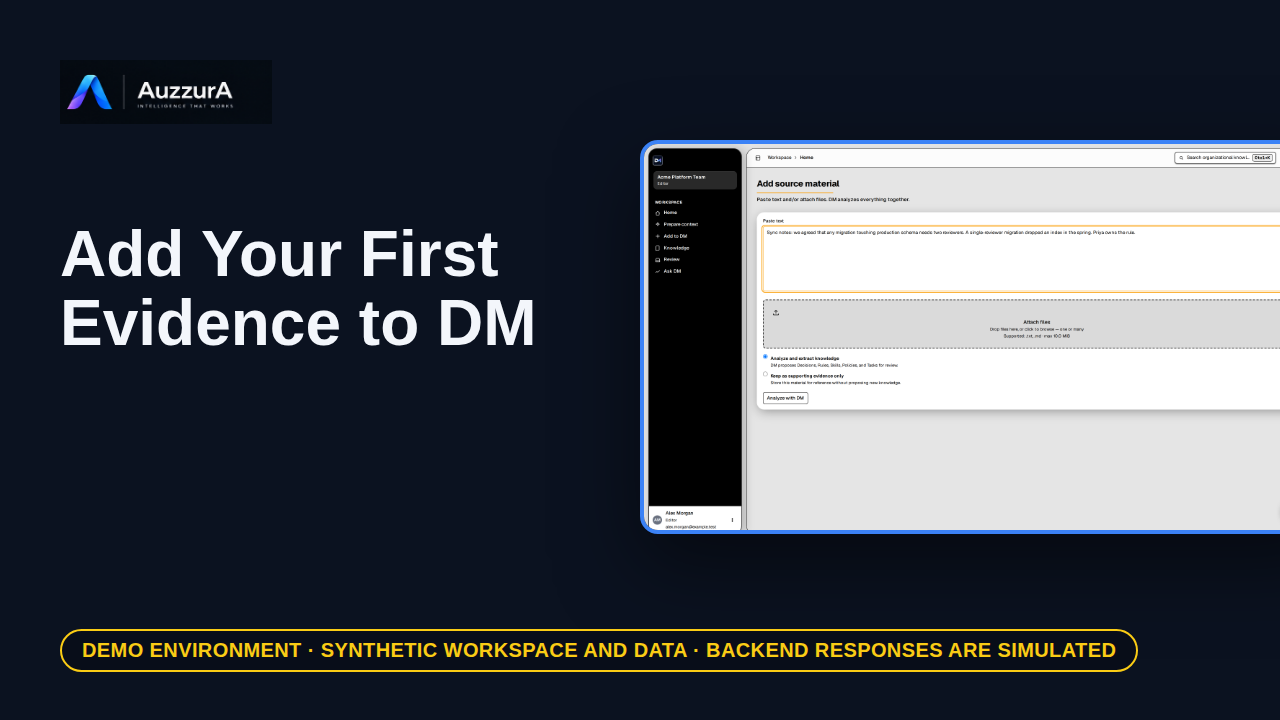
Start from one relevant source rather than recording everything. A team decision often starts in a document, a ticket, or a meeting note.
For: Workspace member
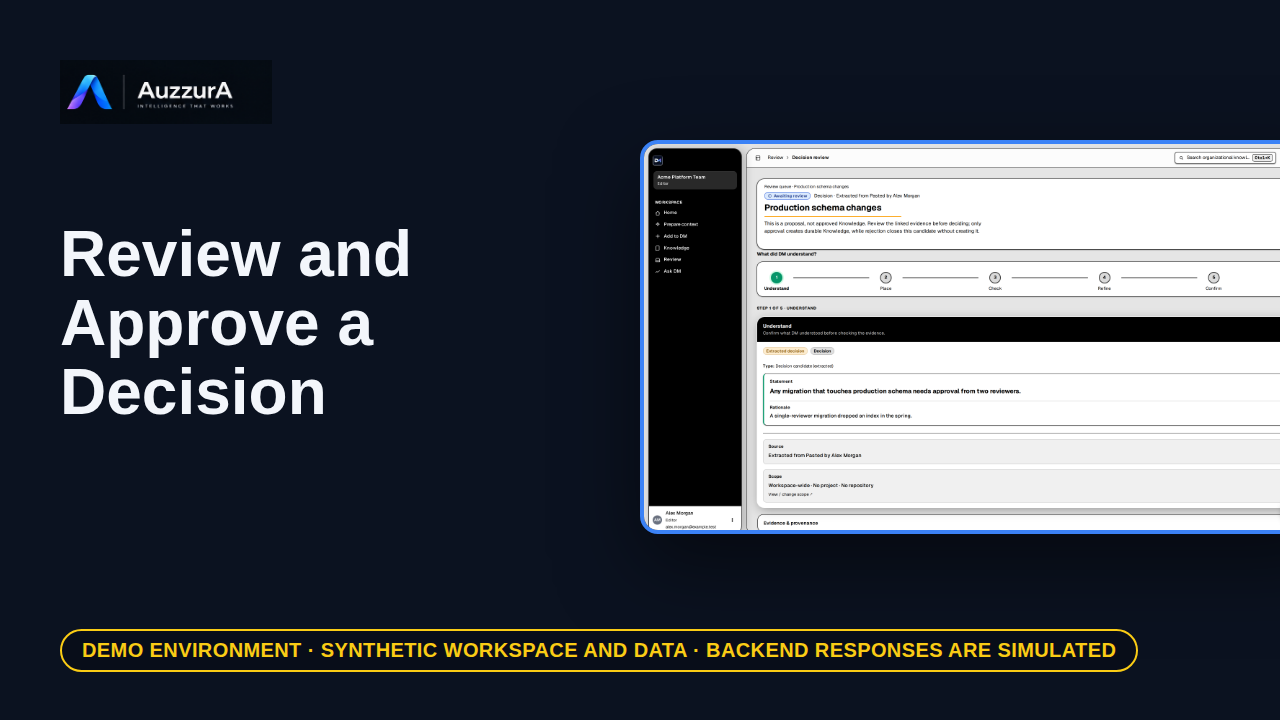
Demonstrate why AI extraction is not automatically team policy. DM proposes what it found. Your team decides what becomes trusted.
For: Reviewer / workspace decision owner