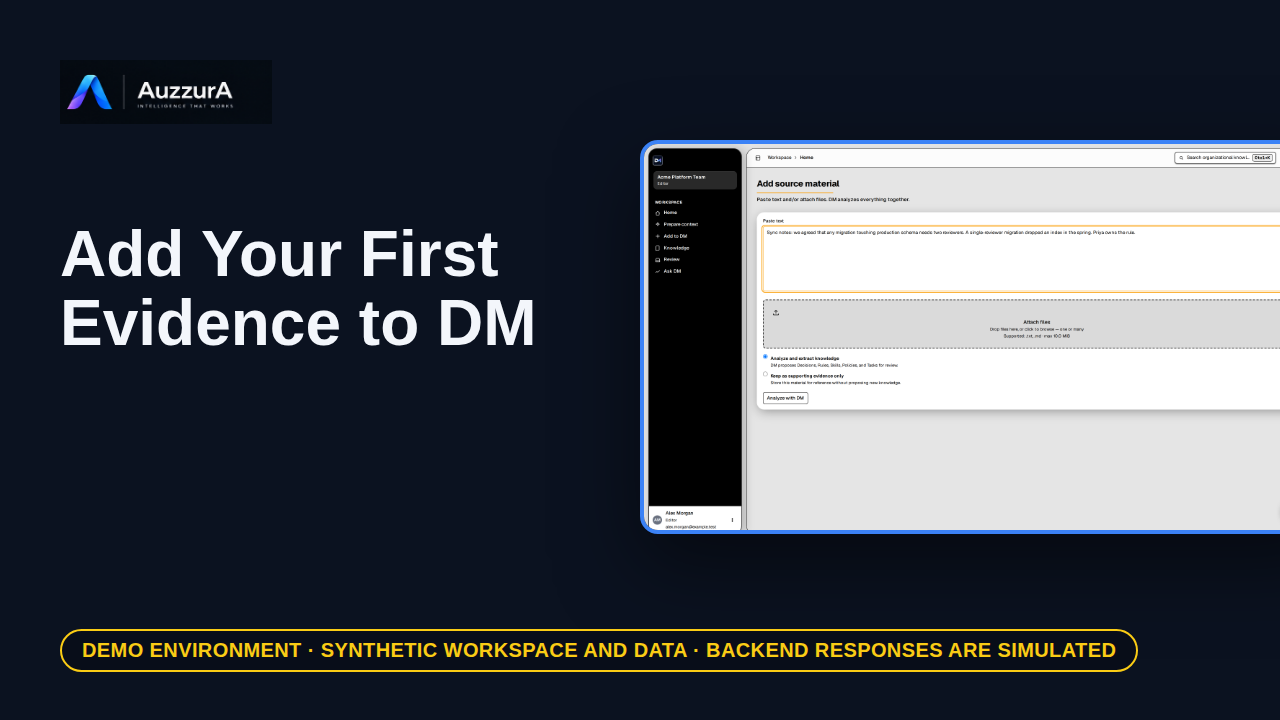
Add your first evidence to DM
Start from one relevant source rather than recording everything. A team decision often starts in a document, a ticket, or a meeting note.
For: Workspace member
How-to
Demonstrate why AI extraction is not automatically team policy. DM proposes what it found. Your team decides what becomes trusted.
Read the steps OR watch the video. Both teach the same outcome, and neither is needed for the other.Jump to the video
What it means: Proposed decisions wait in Review until a person approves them. Select Review.
What it means: This candidate was extracted from pasted notes. It is a proposal, not yet team knowledge. Select Review on the card to open it.
What it means: First, check what DM understood, meaning the statement and the reason given for it. Compare them with your source before you continue.
What it means: If that is right, continue.
What it means: Place says where this belongs. A project and a decision thread are optional here.
What it means: Check shows what DM found before approval, such as blocking issues and items that need attention. Here it found none. Read these before you trust any decision.
What it means: Refine is where you correct the wording or the rationale. Your edits become the approved version, and the original source stays unchanged. This statement is right as it is, so continue.
What it means: Confirm lists what approval will do. Only a person can approve. Select Approve.
What it means: The decision is now part of the approved record, with its reason. Next, find it when you need it.
Editing the wording, requesting evidence, rejecting a candidate and resolving conflicts are not demonstrated; the candidate here has no issues for the checks to flag.
Which roles may approve in a given workspace is not verified; the tour signs in as a workspace editor and the simulated backend accepts the approval.
The extraction that produced the candidate is not shown; the candidate is an invented fixture, not the output of a real AI run.
Demo environment · synthetic workspace and data · backend responses are simulated. AI proposes. Your team decides.
The candidate, the checks and the approval are SIMULATED: this guide uses a synthetic workspace, and DM's approval response and the resulting decision are fixture data, not a deployed backend. What you may review and approve depends on your role and workspace. Only a person approves; nothing in DM approves a candidate automatically.
A banner reading "Demo environment · synthetic workspace and data · backend responses are simulated" stays on screen for the whole video.
On screen: Start on DM Home (/). Click "Review". The next view is "Review queue" (/inbox). A highlight marks "Review".
Narrator: Proposed decisions wait in Review until a person approves them.
Narrator: Select Review.
On screen: Click "Select the candidate (Review)". The next view is "Production schema changes" (/candidates/cand-two-reviewers/review). A highlight labelled "The candidate" marks "Any migration that touches production schema needs approval from two…".
Narrator: This candidate was extracted from pasted notes. It is a proposal, not yet team knowledge.
Narrator: Select Review on the card to open it.
On screen: A highlight labelled "Statement and rationale" marks "Any migration that touches production schema needs approval from two…".
Narrator: First, check what DM understood, meaning the statement and the reason given for it.
Narrator: Compare them with your source before you continue.
On screen: Click "Continue". The next view is "Production schema changes" (/candidates/cand-two-reviewers/review). A highlight labelled "Continue" marks "Yes, continue →".
Narrator: If that is right, continue.
On screen: Click "Next". The next view is "Production schema changes" (/candidates/cand-two-reviewers/review). A highlight labelled "Where it belongs" marks "Project No project selected Platform Core (PLAT) Billing Service (BIL…".
Narrator: Place says where this belongs. A project and a decision thread are optional here.
On screen: Click "Continue to Refine". The next view is "Production schema changes" (/candidates/cand-two-reviewers/review). A highlight labelled "Blocking issues" marks "0". A highlight labelled "Needs attention" marks "0".
Narrator: Check shows what DM found before approval, such as blocking issues and items that need attention.
Narrator: Here it found none. Read these before you trust any decision.
On screen: Click "Continue". The next view is "Production schema changes" (/candidates/cand-two-reviewers/review). A highlight marks "Edit here if needed".
Narrator: Refine is where you correct the wording or the rationale.
Narrator: Your edits become the approved version, and the original source stays unchanged.
Narrator: This statement is right as it is, so continue.
On screen: Click "Approve". The next view is "Two reviewers for production schema changes" (/decisions/dec-review). A highlight marks "Approve".
Narrator: Confirm lists what approval will do. Only a person can approve.
Narrator: Select Approve.
On screen: A highlight labelled "Approved decision" marks "What was decided".
Narrator: The decision is now part of the approved record, with its reason.
Narrator: Next, find it when you need it.
Last verified against the product on .
Start from one relevant source rather than recording everything. A team decision often starts in a document, a ticket, or a meeting note.
For: Workspace member
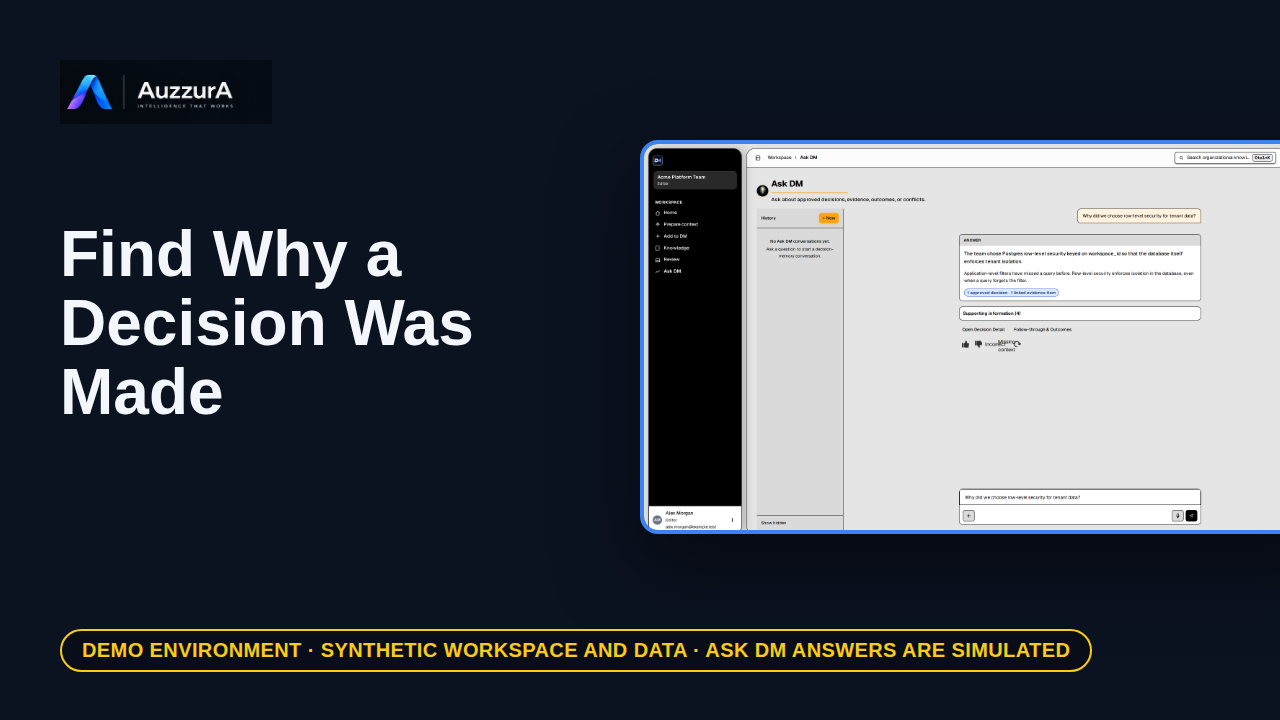
Retrieve rationale, evidence and change history without chasing old messages. You found the implementation. But why was that choice made?
For: New engineer or tech lead
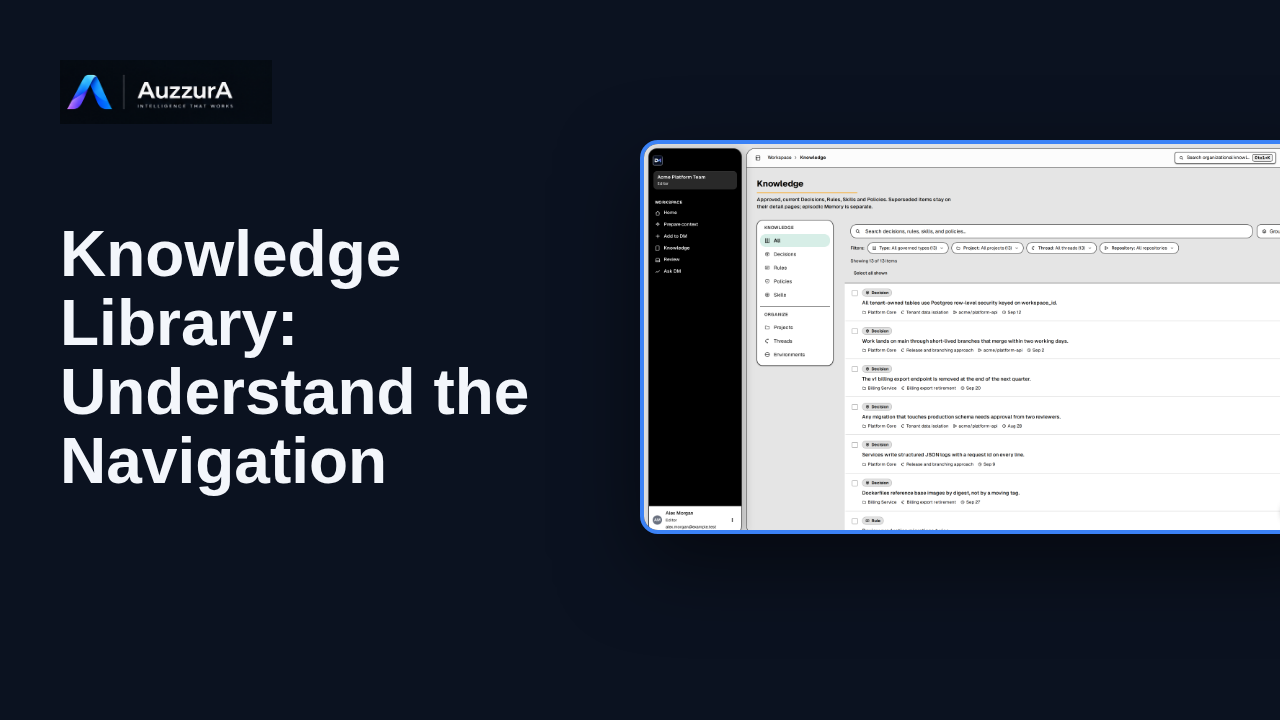
Find approved decisions, rules, skills and related team context in DM’s Knowledge library.
For: New workspace member
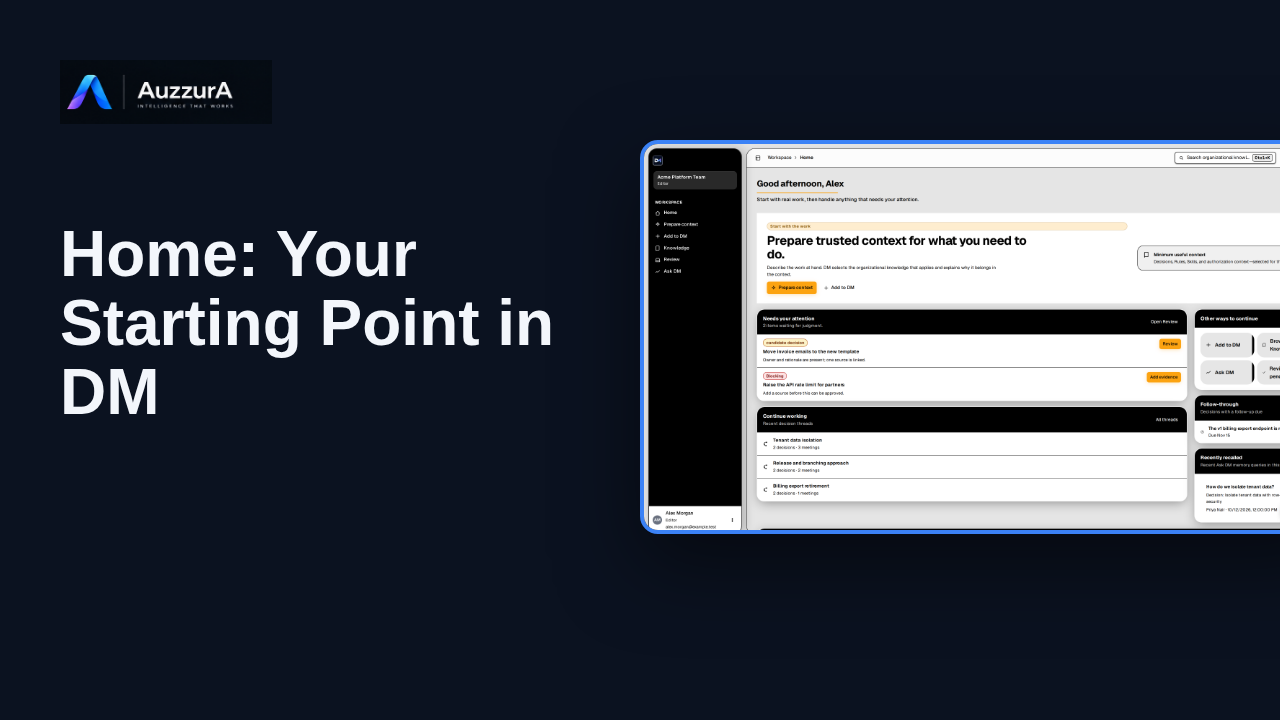
Orient new users to DM Home and the main areas that need attention.
For: Any signed-in workspace member