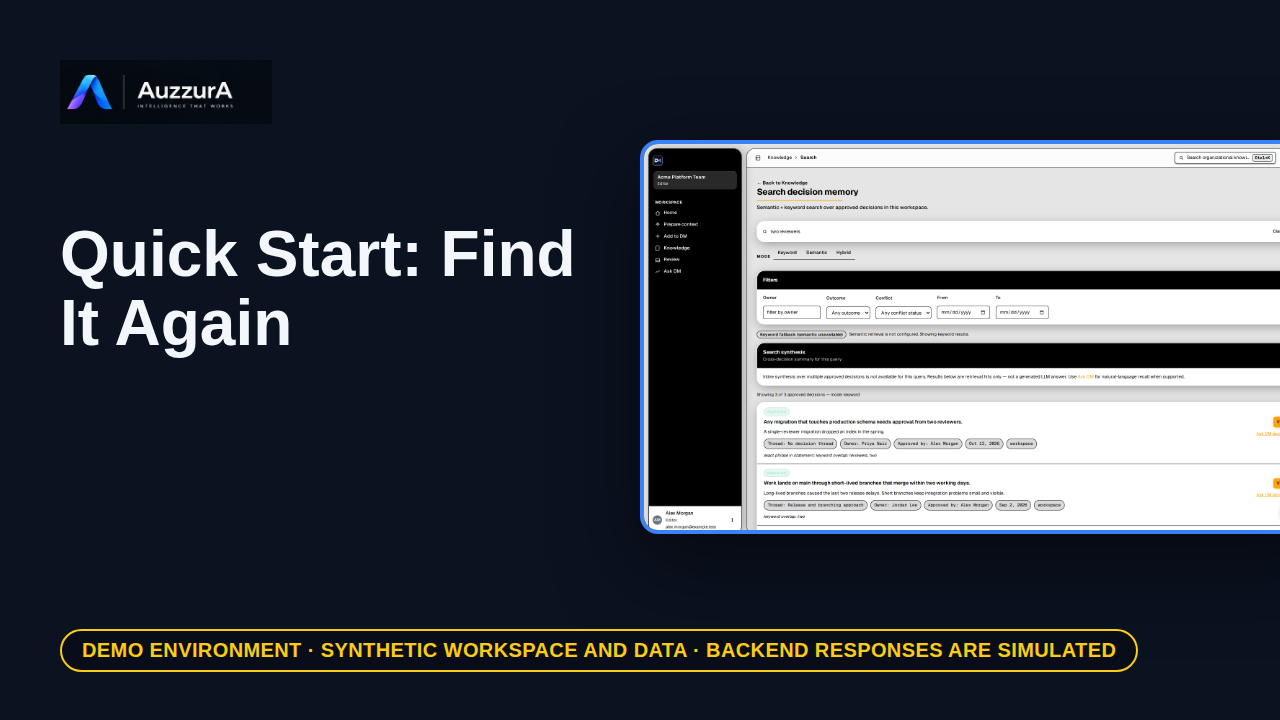
Find it again later
Find the decision, its reason and its evidence. Months later, search beats remembering.
For: Any authorized workspace user
How-to
Ask DM from the decision, and hand it to an agent task as context. An approved decision is only useful if it is used.
Read the steps OR watch the video. Both teach the same outcome, and neither is needed for the other.Jump to the video
Guided Quick Start
Follow the sequence or jump to any lesson. Every step also works on its own, with written instructions alongside the optional video.
Step 6 of 6
What it means: Now put the decision to work. Select Ask DM.
What it means: Ask in your own words.
What it means: Select Send.
What it means: The answer comes from the approved decision, and says so.
What it means: The same decision can guide an agent's work. Open Prepare context.
What it means: Describe the work. Here, a migration that changes the invoices table.
What it means: Select Prepare context.
What it means: Your two-reviewer decision is selected for this task. DM can't guarantee that an external agent follows it, so people still review the work.
No agent is connected and no agent runs; this clip does not show an agent following the prepared context (agent connection needs a verified client and is outside Quick Start).
Answer quality, retrieval and which rules or skills a real workspace would add are not shown or verified.
Demo environment · synthetic workspace and data · backend responses are simulated. Quick Start 6 of 6
The Ask DM answer and the prepared context are SIMULATED: this guide uses the real DM Ask DM and Prepare context pages with a synthetic workspace, and both responses are fixtures, not a deployed backend or a real AI run. DM prepares context but cannot guarantee that an external agent follows it. Quick Start clips 1 to 6 follow one example workspace, Acme Platform Team.
A banner reading "Demo environment · synthetic workspace and data · backend responses are simulated" stays on screen for the whole video.
On screen: Start on DM Home (/). Click "Ask DM". The next view is "Ask DM" (/ask-dm). A highlight marks "Ask DM".
Narrator: Now put the decision to work. Select Ask DM.
On screen: Type "Why do production migrations need two reviewers?" into the "Ask a question about decision memory" field. A highlight marks "Your question".
Narrator: Ask in your own words.
On screen: Click "Send". The next view is "Ask DM" (/ask-dm). A highlight marks "Send".
Narrator: Select Send.
On screen: A highlight labelled "From the approved decision" marks "Any migration that touches production schema needs approval from two…".
Narrator: The answer comes from the approved decision, and says so.
On screen: Click "Prepare context". The next view is "Prepare context" (/task). A highlight marks "Prepare context".
Narrator: The same decision can guide an agent's work. Open Prepare context.
On screen: Type "Add a migration that changes the invoices table" into the "What are you working on? Required" field. A highlight marks "The work".
Narrator: Describe the work. Here, a migration that changes the invoices table.
On screen: Click "Prepare context". The next view is "Prepare context" (/task). A highlight marks "Prepare context".
Narrator: Select Prepare context.
On screen: A highlight labelled "Context prepared" marks "Context for this work Relevant knowledge selected from your active wo…".
Narrator: Your two-reviewer decision is selected for this task. DM can't guarantee that an external agent follows it, so people still review the work.
Last verified against the product on .
Find the decision, its reason and its evidence. Months later, search beats remembering.
For: Any authorized workspace user
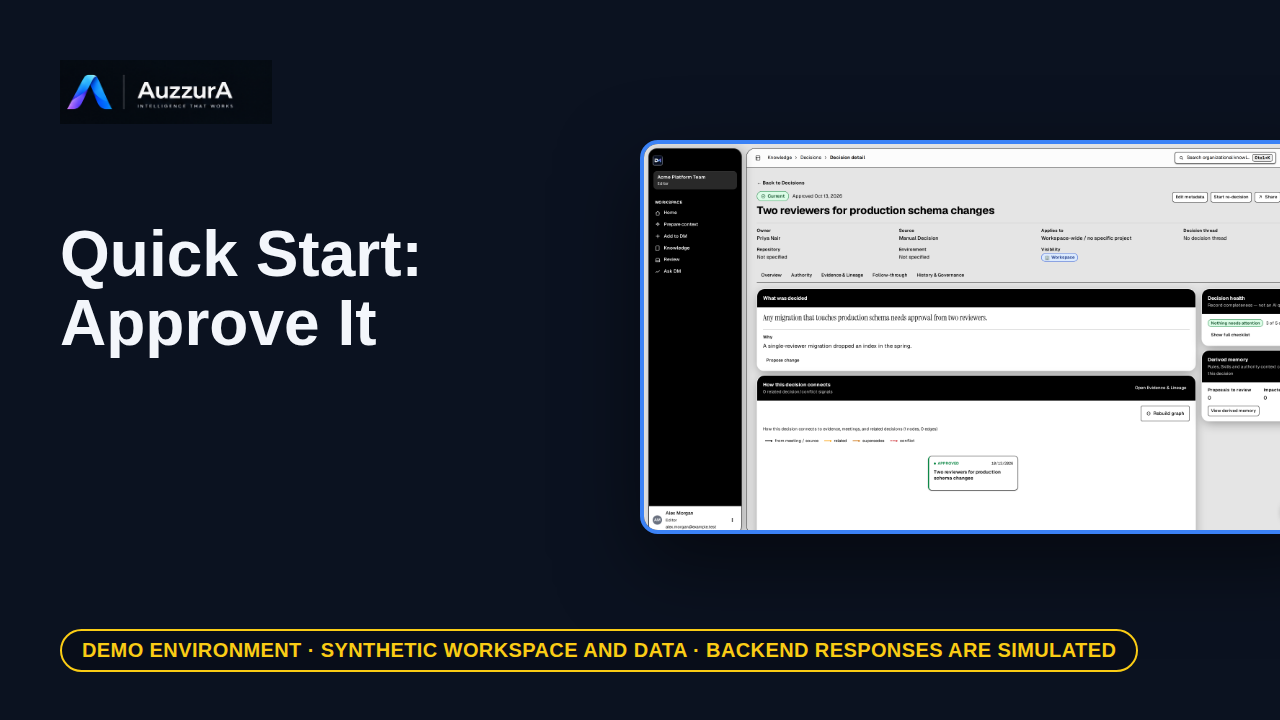
The candidate becomes approved team knowledge. Until a person approves it, it is only a proposal.
For: Reviewer or workspace decision owner
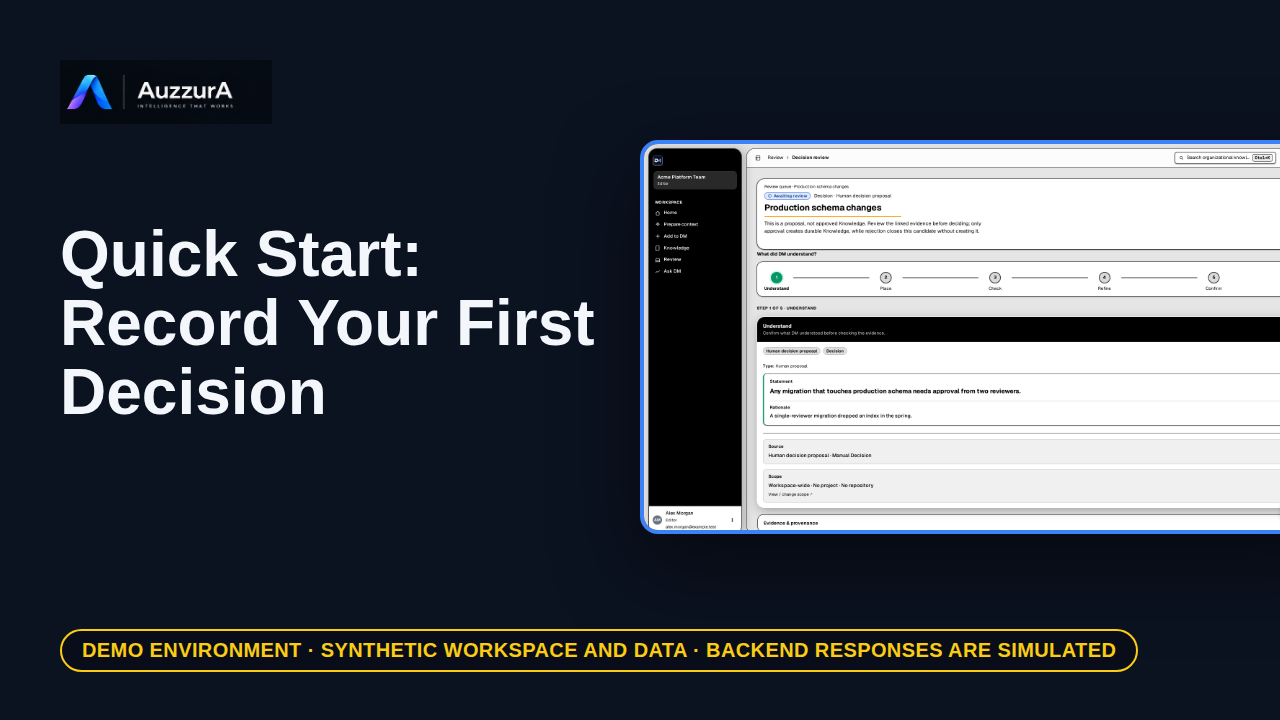
A decision candidate with its rationale is saved for review. Write the decision first. Add the reason while it is fresh.
For: Workspace member who can create decisions
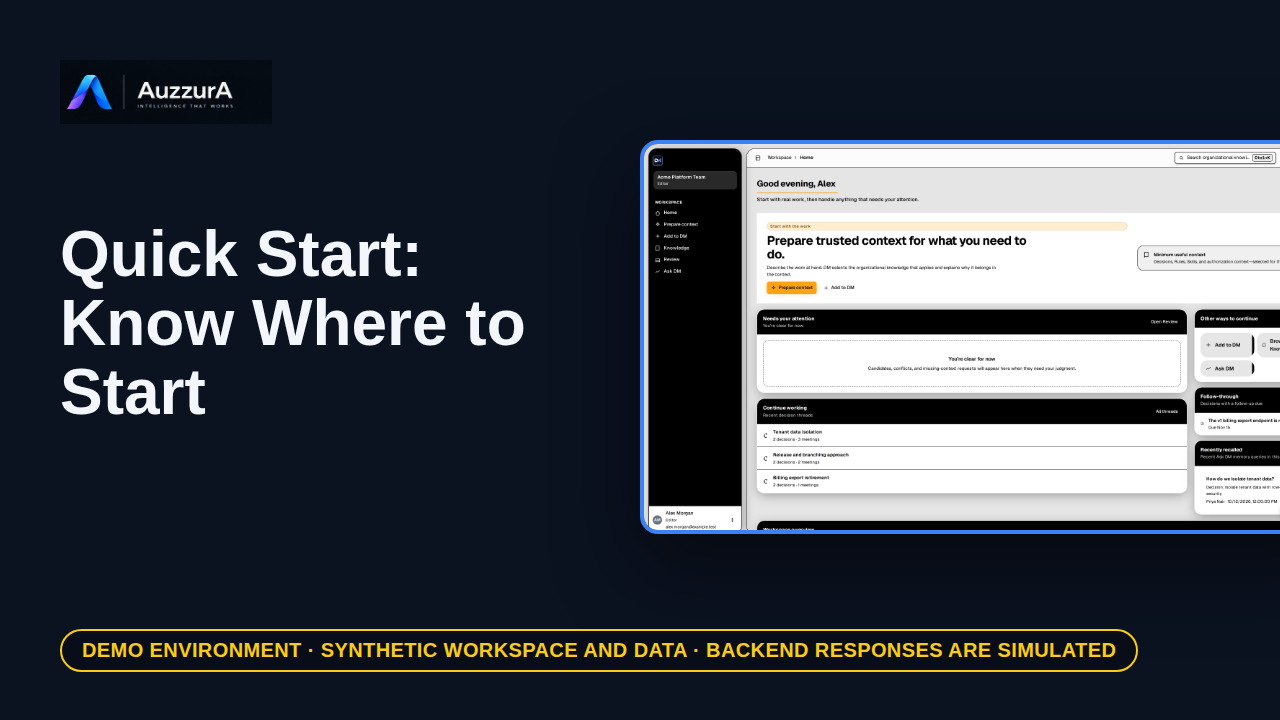
Know the three places you will use: the Home queue, Add to DM and Knowledge. Three places are enough to get started.
For: Any signed-in workspace member