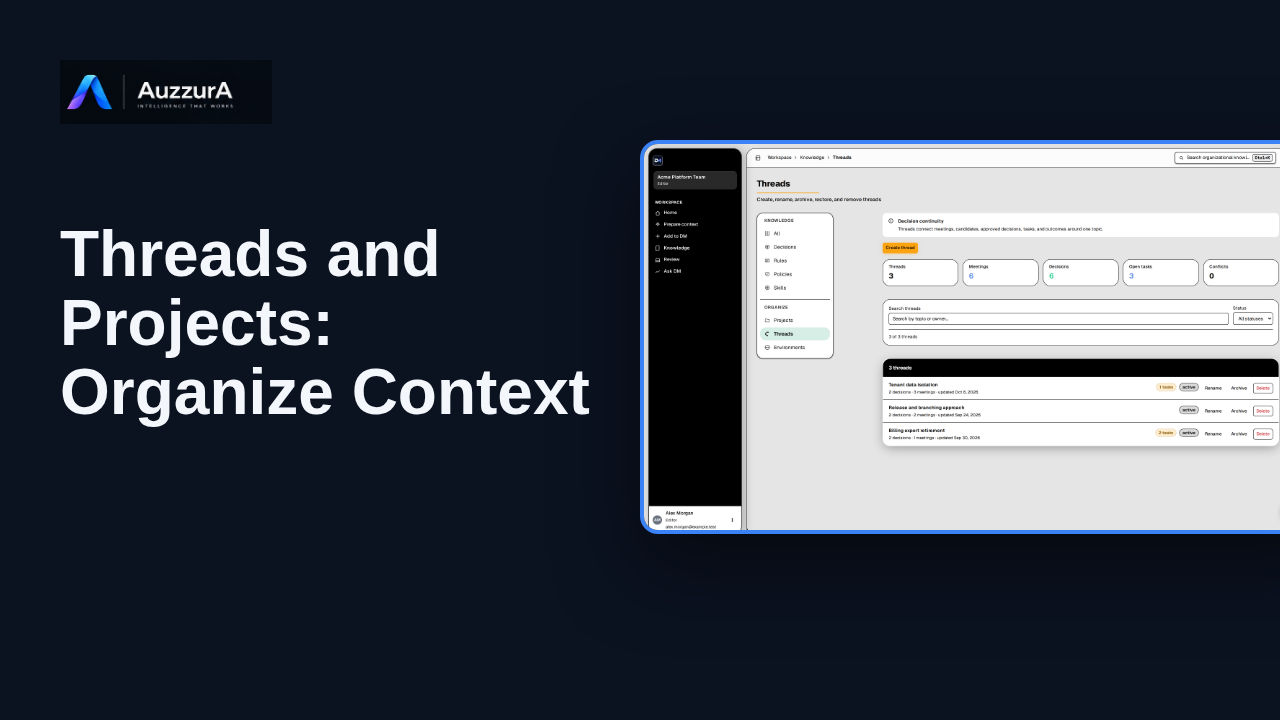
Threads and Projects: organize context
Explain how topic continuity and project organization work in the Knowledge section. Decisions change over time. Threads help keep their history connected.
For: Workspace member or project lead
Product tour
Explore workspace and account settings available to your role in DM.
Read the steps OR watch the video. Both teach the same outcome, and neither is needed for the other.Jump to the video
What it means: Your personal settings are in your account menu. Select your name at the bottom of the sidebar.
What it means: Choose Account settings.
What it means: Account shows your name, your email address and your role in this workspace. Further down, it explains how to deactivate or delete your account. Nothing changes unless you choose it.
What it means: Select Back to Settings. Settings opens on your workspace.
What it means: This page shows the workspace's type, your role in it and its status. Changing shared workspace settings needs an owner or an admin, and the page says so.
What it means: Select Appearance.
What it means: Appearance lets you choose how DM looks for you.
What it means: Next, select Notifications.
What it means: Notifications lets you choose which in-app alerts you receive. In this release, alerts stay inside DM.
What it means: Then select Sessions.
What it means: Sessions shows your current session on this device.
What it means: Finally, select My Authorizations.
What it means: My Authorizations lists the provider connections that belong to you. What you can connect depends on what your deployment supports.
What it means: Shared administration lives in the Control Panel, which is for workspace owners and admins. Privacy, Memberships and Usage are also here, but this video does not cover them. Next, explore your Home, or ask your workspace administrator.
The account, workspace and preferences shown are invented for this tour. What other roles see, and which options are enabled in a real workspace, was not shown or verified.
No setting is changed: this tour only reads. Privacy, Memberships, Usage, appearance choices and account deactivation or deletion are not demonstrated, and the Control Panel is not opened.
Demo environment · synthetic workspace and data · backend responses are simulated. Where your personal options live, and where admin tools begin
This guide tours the real DM Settings pages with a synthetic workspace, a synthetic account and simulated backend responses. Which settings you see depends on your role and what your workspace has enabled.
Disclosure (kept in this transcript and the video description, not drawn on the frames): Demo environment · synthetic workspace and data · backend responses are simulated.
On screen: Start on DM Home (/). Click "Account menu". The next view is "Good evening, Alex" (/). A highlight marks "Your menu".
Narrator: Your personal settings are in your account menu.
Narrator: Select your name at the bottom of the sidebar.
On screen: Click "Account settings". The next view is "Account" (/settings/account). A highlight marks "Account settings".
Narrator: Choose Account settings.
On screen: A highlight labelled "Your account" marks "Signed in as".
Narrator: Account shows your name, your email address and your role in this workspace.
Narrator: Further down, it explains how to deactivate or delete your account. Nothing changes unless you choose it.
On screen: Click "← Back to Settings". The next view is "Workspace settings" (/settings/workspace). A highlight labelled "Back to Settings" marks "← Back to Settings".
Narrator: Select Back to Settings.
Narrator: Settings opens on your workspace.
On screen: A highlight labelled "This workspace" marks "Acme Platform Team Type shared Your role editor Status Active Workspa…". A highlight labelled "Admin access" marks "Workspace admin access required Ask a workspace owner or admin to man…".
Narrator: This page shows the workspace's type, your role in it and its status.
Narrator: Changing shared workspace settings needs an owner or an admin, and the page says so.
On screen: Click "Appearance". The next view is "Appearance" (/settings/appearance). A highlight marks "Appearance".
Narrator: Select Appearance.
On screen:
Narrator: Appearance lets you choose how DM looks for you.
On screen: Click "Notifications". The next view is "Notifications" (/settings/notifications). A highlight marks "Notifications".
Narrator: Next, select Notifications.
On screen: A highlight labelled "What you receive" marks "You control which alerts you receive. Alerts are scoped to this works…".
Narrator: Notifications lets you choose which in-app alerts you receive.
Narrator: In this release, alerts stay inside DM.
On screen: Click "Sessions". The next view is "My sessions" (/settings/sessions). A highlight marks "Sessions".
Narrator: Then select Sessions.
On screen:
Narrator: Sessions shows your current session on this device.
On screen: Click "My Authorizations". The next view is "My Authorizations" (/settings/connected-accounts). A highlight marks "My Authorizations".
Narrator: Finally, select My Authorizations.
On screen:
Narrator: My Authorizations lists the provider connections that belong to you.
Narrator: What you can connect depends on what your deployment supports.
On screen: A highlight labelled "More settings" marks "YOU Account Appearance Notifications Privacy Sessions Memberships My…".
Narrator: Shared administration lives in the Control Panel, which is for workspace owners and admins.
Narrator: Privacy, Memberships and Usage are also here, but this video does not cover them.
Narrator: Next, explore your Home, or ask your workspace administrator.
Last verified against the product on .
Explain how topic continuity and project organization work in the Knowledge section. Decisions change over time. Threads help keep their history connected.
For: Workspace member or project lead
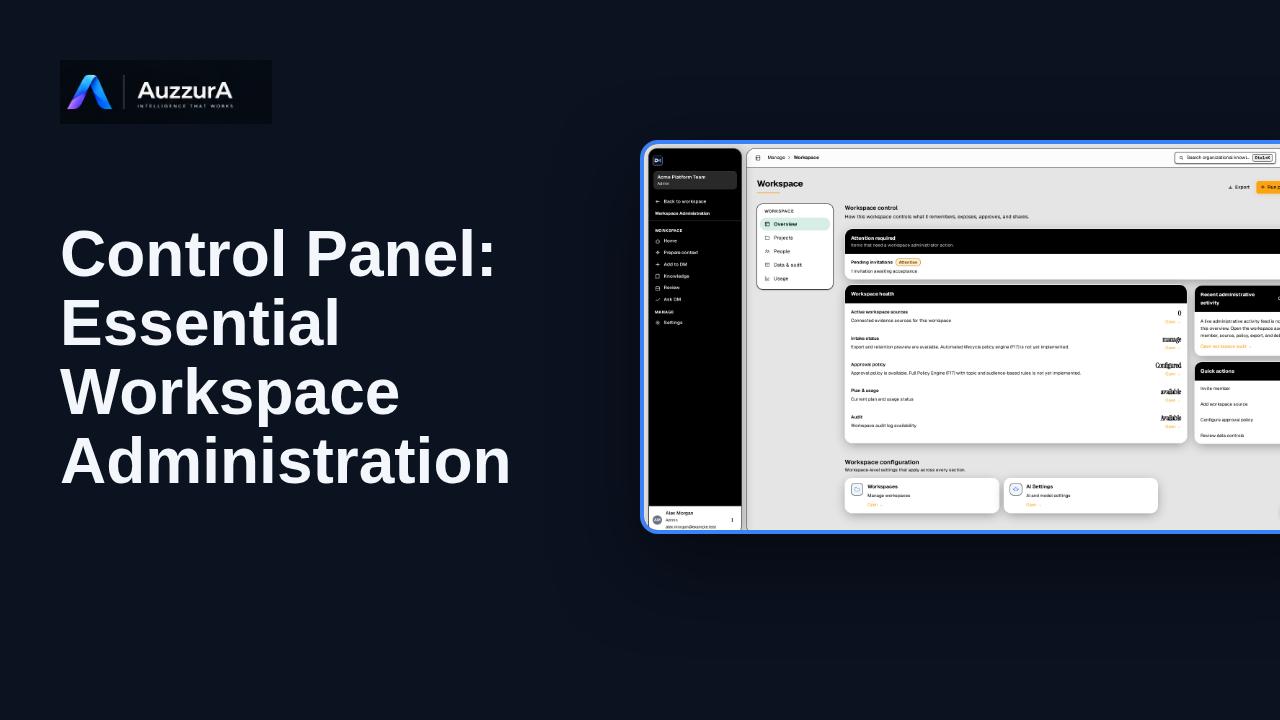
Learn where workspace admins manage members, agents, sources and governance controls.
For: Workspace owner or admin
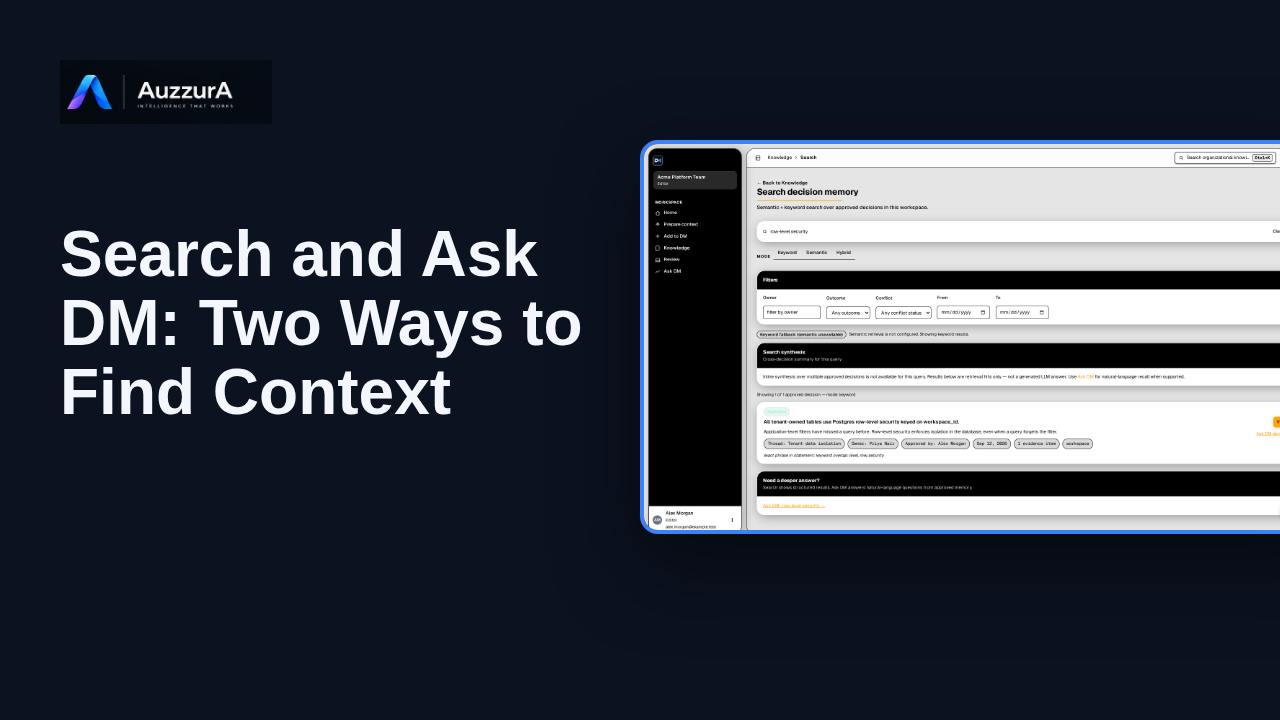
Orient users to search/navigation versus natural-language answer with citations. You do not need to remember a document title to find the decision behind it.
For: Any authorized workspace user
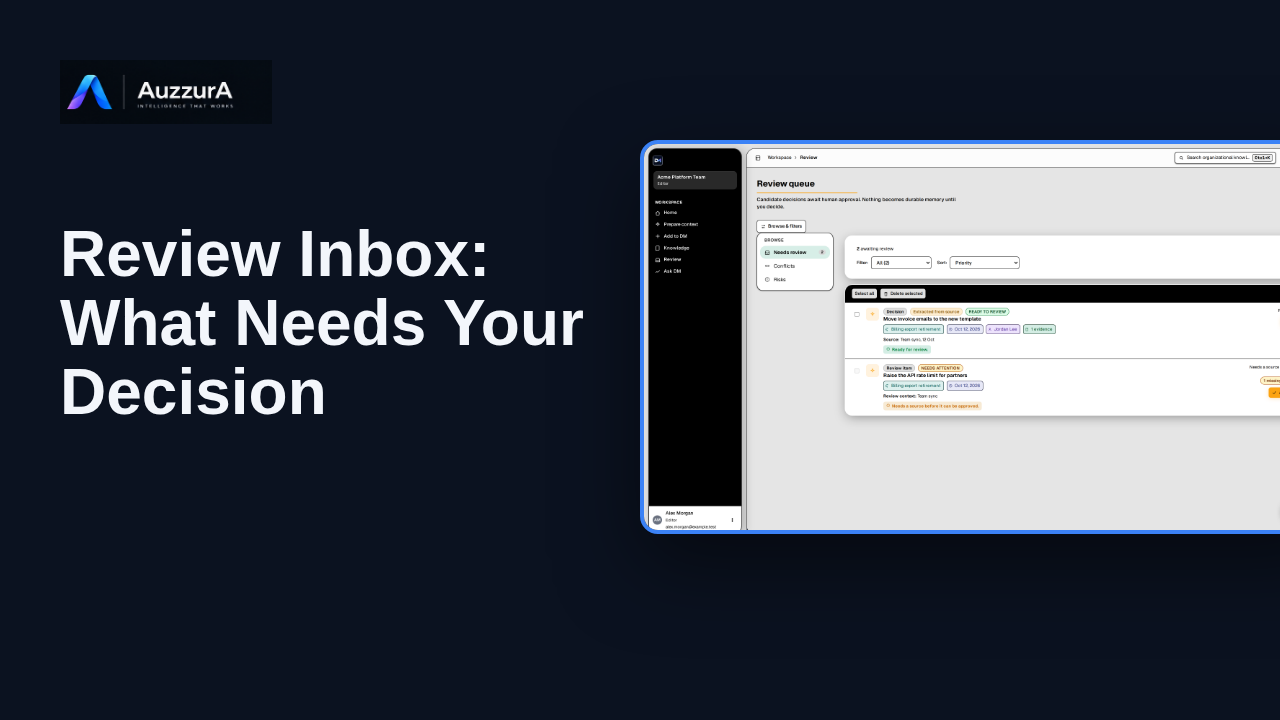
Show how to interpret the review queue before diving into detailed approval. The Review Inbox is where proposed knowledge waits for someone to judge it.
For: Reviewer or workspace decision owner