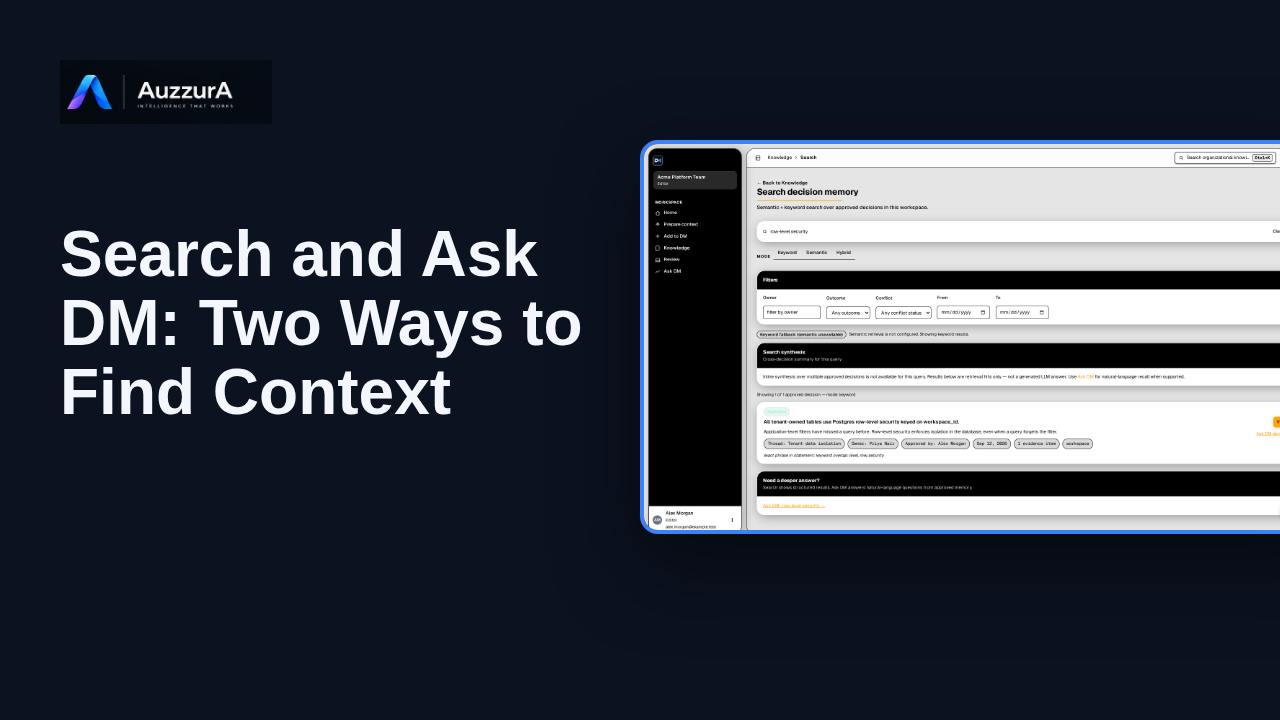
Search and Ask DM: two ways to find context
Orient users to search/navigation versus natural-language answer with citations. You do not need to remember a document title to find the decision behind it.
For: Any authorized workspace user
Product tour
Explain how topic continuity and project organization work in the Knowledge section. Decisions change over time. Threads help keep their history connected.
Read the steps OR watch the video. Both teach the same outcome, and neither is needed for the other.Jump to the video
What it means: Start from your DM Home. Topics rarely end in one meeting, so DM lets you organize context around them. Let's look at Threads and Projects.
What it means: Select Knowledge in the main navigation. Threads and Projects sit under Organize.
What it means: A thread follows one topic across many meetings. Choose Threads.
What it means: A thread connects the meetings, decisions and tasks around one topic. The counts at the top add up what is attached to your threads, and each row shows the same for its own topic.
What it means: You can create a thread, and rename or archive the ones you have. What you can change here depends on your role.
What it means: Projects organize work at a higher level. Choose Projects.
What it means: The page explains the difference. Threads track one topic across meetings. Projects group work by delivery or portfolio context. Each project shows its key, and how many decisions and threads belong to it.
What it means: Here, this account can read projects but not change them. Only workspace owners and admins can create or edit projects.
What it means: Threads and projects meet in your decisions. Choose Decisions.
What it means: Select a decision to preview it.
What it means: Every decision names its project and its thread. So you can always trace it back to the topic and the work it belongs to. Next, let's browse the Decisions library.
The threads, projects, counts and decisions shown are invented for this tour. A real workspace shows its own, and the controls you see depend on your role.
Creating, renaming, archiving or deleting a thread or project is shown as controls only; none is used. A single thread's own detail page and the graph views are not covered.
Demo environment · synthetic workspace and data · backend responses are simulated. Follow a topic across meetings, and group work by project
This guide tours the real DM Threads and Projects pages with a synthetic workspace and simulated backend responses. What you can create, rename or archive depends on your role.
Disclosure (kept in this transcript and the video description, not drawn on the frames): Demo environment · synthetic workspace and data · backend responses are simulated.
On screen: Start on DM Home (/). A highlight marks "Knowledge".
Narrator: Start from your DM Home.
Narrator: Topics rarely end in one meeting, so DM lets you organize context around them.
Narrator: Let's look at Threads and Projects.
On screen: Click "Knowledge". The next view is "Knowledge" (/knowledge). A highlight marks "Knowledge".
Narrator: Select Knowledge in the main navigation.
Narrator: Threads and Projects sit under Organize.
On screen: Click "Threads". The next view is "Threads" (/knowledge/threads). A highlight marks "Threads".
Narrator: A thread follows one topic across many meetings.
Narrator: Choose Threads.
On screen: A highlight labelled "What your threads hold" marks "Threads 3 Meetings 6 Decisions 6 Open tasks 3 Conflicts 0". A highlight labelled "One topic" marks "Tenant data isolation 2 decisions · 3 meetings · updated Oct 6, 2026…".
Narrator: A thread connects the meetings, decisions and tasks around one topic.
Narrator: The counts at the top add up what is attached to your threads, and each row shows the same for its own topic.
On screen: A highlight labelled "Create" marks "Create thread". A highlight marks "Rename". A highlight marks "Archive".
Narrator: You can create a thread, and rename or archive the ones you have.
Narrator: What you can change here depends on your role.
On screen: Click "Projects". The next view is "Projects" (/knowledge/projects). A highlight marks "Projects".
Narrator: Projects organize work at a higher level.
Narrator: Choose Projects.
On screen: A highlight labelled "One project" marks "Platform Core Active Key: PLAT · 4 decisions · 2 threads · Updated 10…".
Narrator: The page explains the difference. Threads track one topic across meetings. Projects group work by delivery or portfolio context.
Narrator: Each project shows its key, and how many decisions and threads belong to it.
On screen: A highlight labelled "Your access" marks "View only".
Narrator: Here, this account can read projects but not change them.
Narrator: Only workspace owners and admins can create or edit projects.
On screen: Click "Decisions". The next view is "Decisions" (/knowledge/decisions). A highlight marks "Decisions".
Narrator: Threads and projects meet in your decisions.
Narrator: Choose Decisions.
On screen: Click "Decision All tenant-owned tables use Postgres row-level security keyed on worksp". The next view is "Decisions" (/knowledge/decisions). A highlight labelled "Select a decision" marks "Decision All tenant-owned tables use Postgres row-level security keye…".
Narrator: Select a decision to preview it.
On screen: A highlight labelled "Project and thread" marks "Project Platform Core Thread Tenant data isolation Updated 9/12/2026".
Narrator: Every decision names its project and its thread.
Narrator: So you can always trace it back to the topic and the work it belongs to.
Narrator: Next, let's browse the Decisions library.
Last verified against the product on .
Orient users to search/navigation versus natural-language answer with citations. You do not need to remember a document title to find the decision behind it.
For: Any authorized workspace user
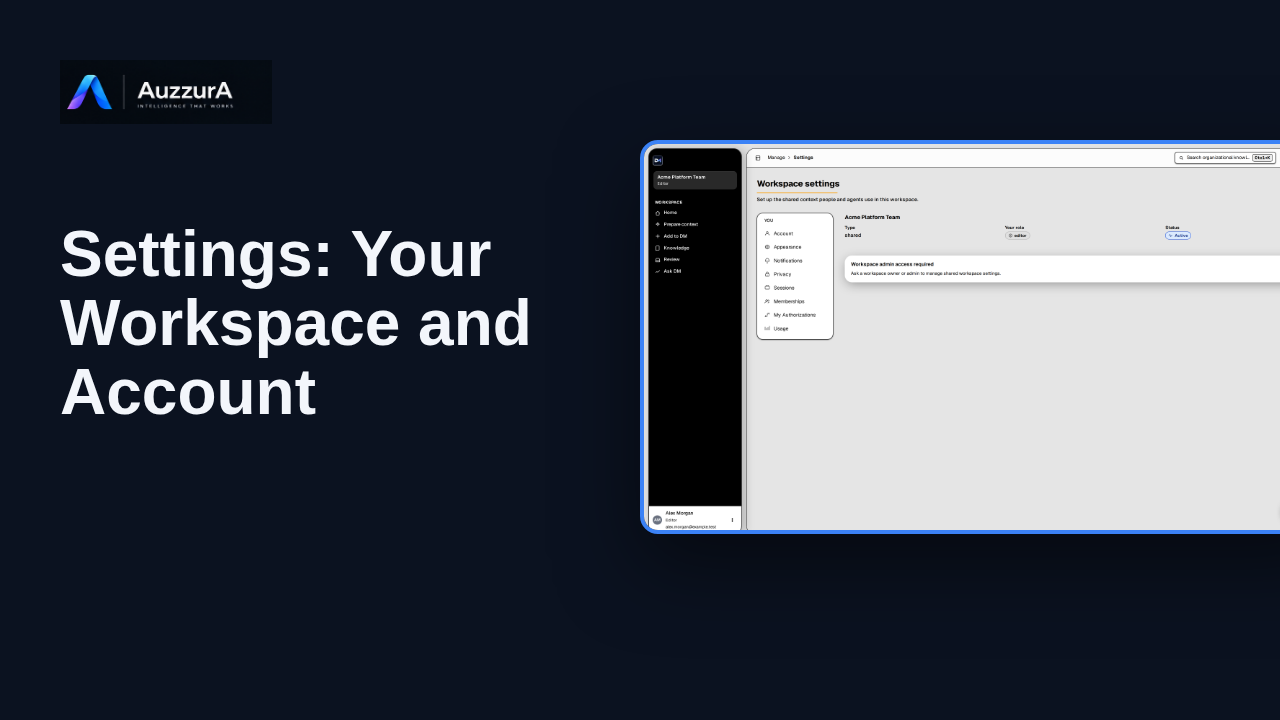
Explore workspace and account settings available to your role in DM.
For: Signed-in member
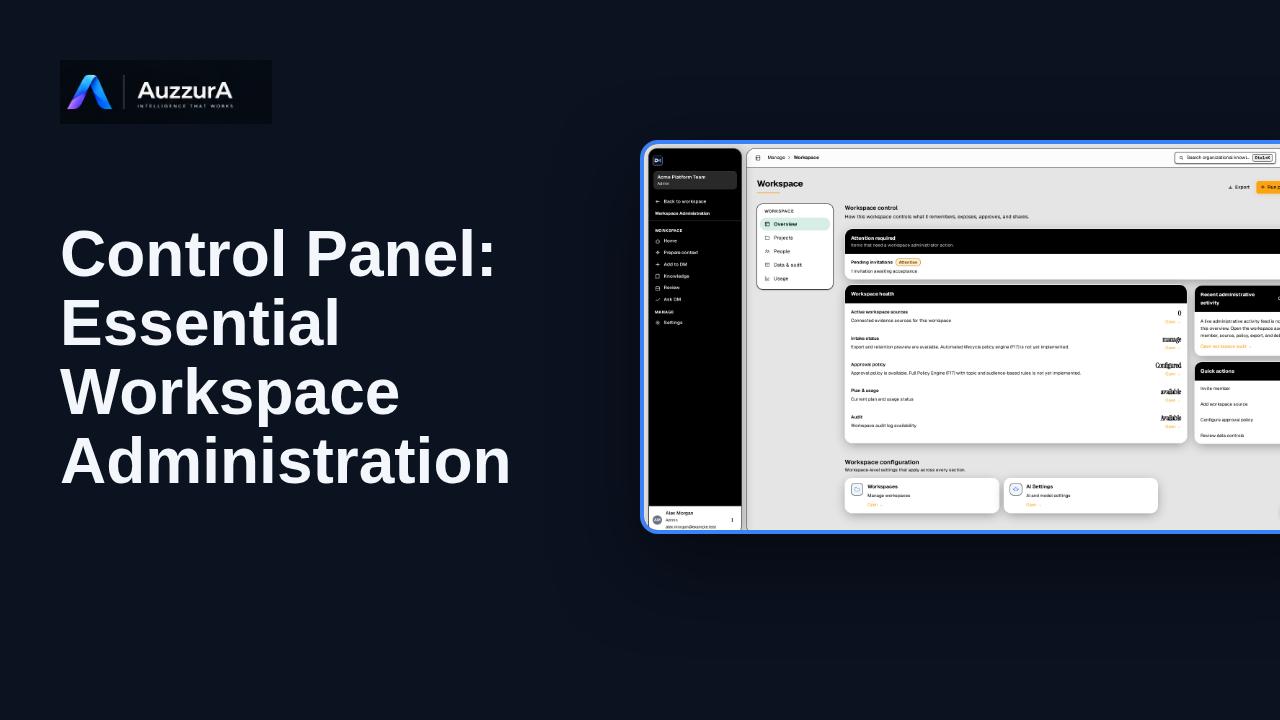
Learn where workspace admins manage members, agents, sources and governance controls.
For: Workspace owner or admin
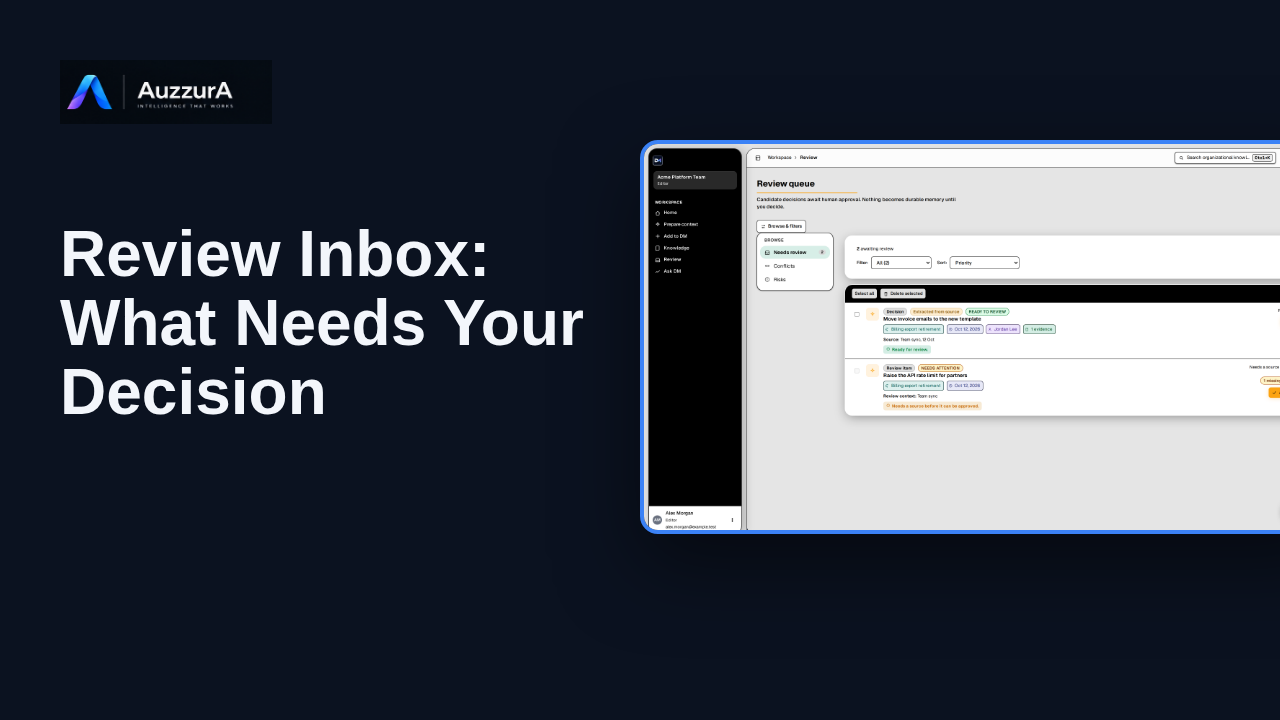
Show how to interpret the review queue before diving into detailed approval. The Review Inbox is where proposed knowledge waits for someone to judge it.
For: Reviewer or workspace decision owner